Skip to content

How S-Phish Works: Create, Customise & Launch Phishing Simulations

Phishing resilience isn't built by sending a test email and counting clicks. It starts with choosing a believable scenario, reaching the right employees and turning their responses into opportunities to learn.

Here's how S-Phish brings that process together.

A controlled simulation · A learning opportunity

A familiar-looking message An unexpected request. A moment to decide.
Review request →
Test the decision. Reinforce the lesson.

Five Steps. One Connected Phishing Simulation.

From the type of phishing attempt to the people who receive it and the learning that follows, each step helps turn a campaign into a more meaningful security awareness exercise.

Select Attack → Select Targets → Schedule → NIST PremisesOptional → Review & Phish

Before You Begin: Prepare Your Email Environment

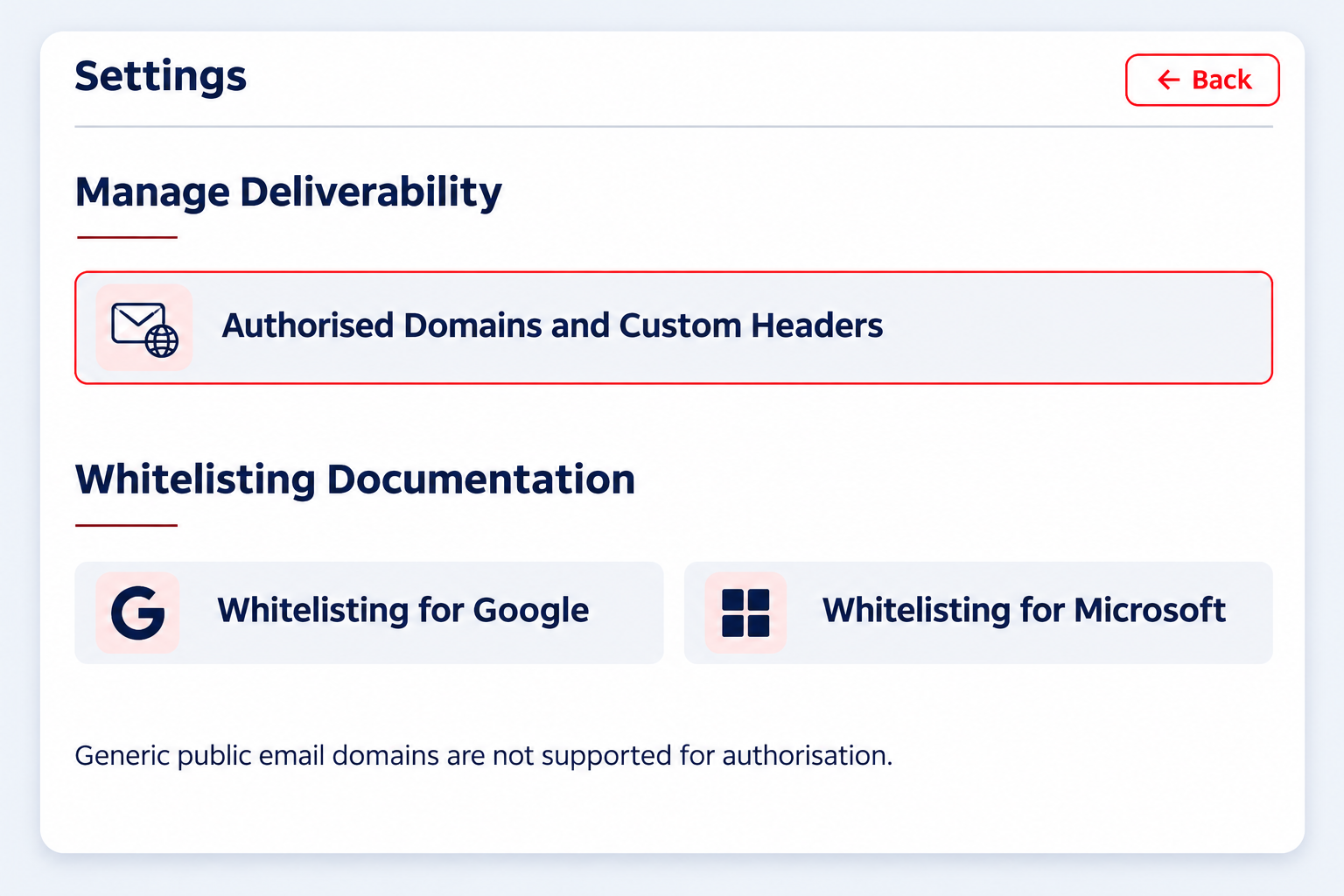
Before launching your first campaign, ensure your organisation's email environment is configured to receive S-Phish simulations. Use the Settings area to manage authorised organisational domains and custom headers, and follow the relevant whitelisting guidance for Google or Microsoft environments.

Domain authorisation supports verified organisational domains. Public email domains such as Gmail, Yahoo and Outlook.com cannot be authorised through this workflow.

Why this matters: Campaign targeting and email-domain authorisation serve different purposes. Define who should be tested, and make sure the relevant sending configuration is prepared before launch.

Select Attack

Choose the Threat. Make the Test Relevant.

Not every phishing attempt looks like a suspicious link. Some ask for credentials, others arrive as attachments, QR codes, calendar invitations or convincing requests to reply. S-Phish lets you begin with the behaviour you want to test and build a simulation around it.

First, decide how the story unfolds and

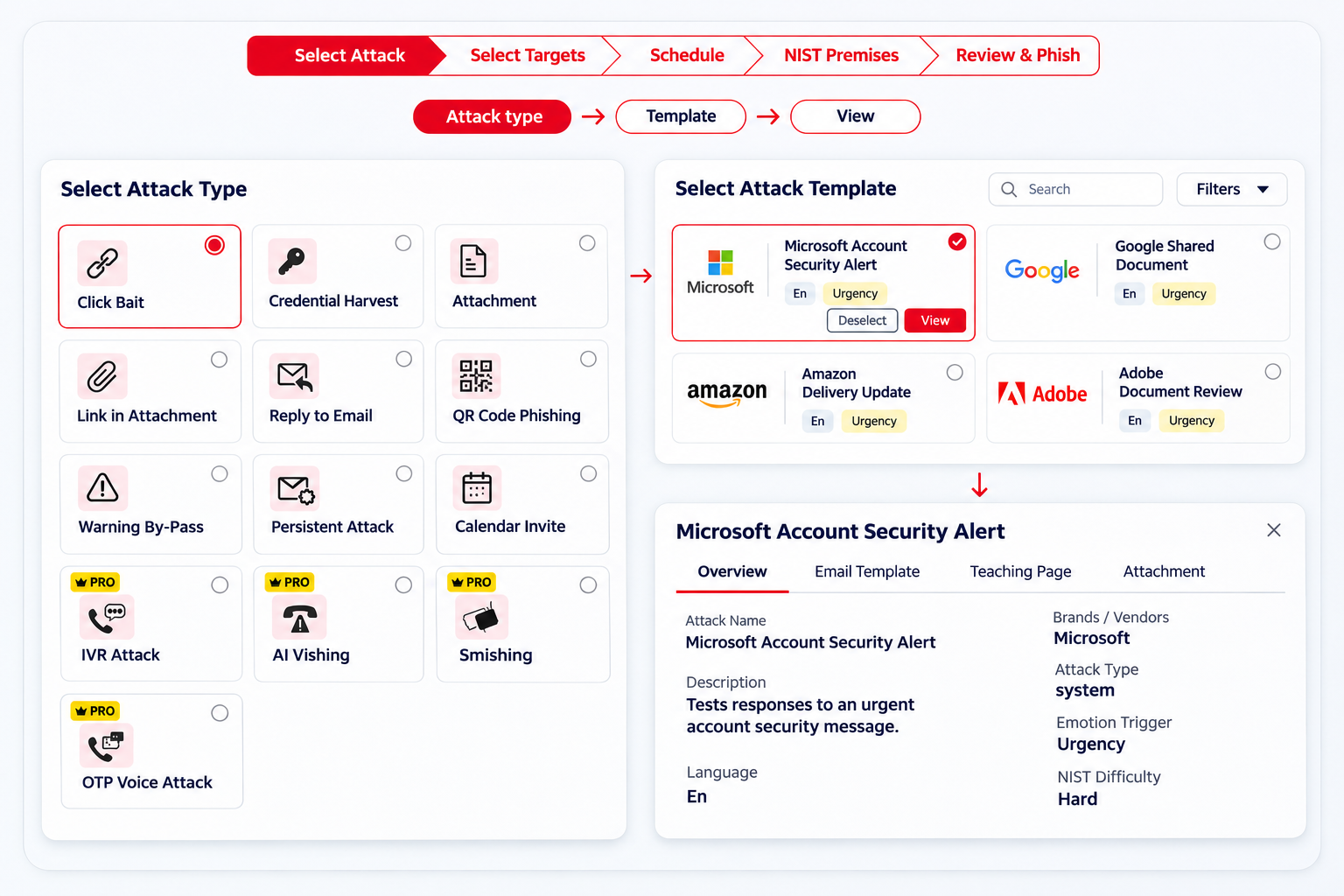
Select from a range of Phishing simulation formats to reflect different attacks employees may encounter. From a simple click-based lure to more involved scenarios, you can shape the exercise around your workforce's exposure and awareness priorities.
Then choose the story behind it

Explore the template library and select one or multiple attack templates for the campaign. Templates can be searched and filtered, helping you choose scenarios that fit the audience and the behaviour you want to assess.

Go beyond the subject line. Template details can include the scenario overview, language, emotional trigger and difficulty information, so you can make an informed selection before launching.

S-Phish Select Attack: choose attack type, template and preview

A Broader Range of Phishing Attack types

Click Bait

Test reactions to enticing or urgent links.

Credential Harvest

Simulate deceptive sign-in requests.

Attachment

Test responses to suspicious files.

Link in Attachment

Explore risks hidden inside documents.

Reply to Email

Test responses to deceptive messages.

QR Code Phishing

Simulate quishing scenarios.

Warning By-Pass

Test reactions to security warnings.

Persistent Attack

Simulate scheduled follow-up attempts.

Calendar Invite

Test suspicious meeting requests.

IVR Attack PRO

Interactive voice-response scenarios.

AI Vishing PRO

AI-driven conversational voice simulations.

Smishing PRO

SMS-based phishing simulations.

OTP Voice Attack PRO

Test fraudulent one-time-password requests.

PRO-labelled attack types are available as additional options; availability may depend on the selected S-Phish package.

Preview the Complete Attack Template

Review more than the email's title. Each available template can provide a closer look at the simulation, including its email content, teaching page and any associated attachment. That makes it easier to check both the test employees will receive and the learning experience that follows.

Customise the Email and Learning Experience

S-Phish gives you the option to edit the selected email template and teaching page, so the message and follow-up learning can be adapted to your campaign. You can adjust the simulated email experience before launch rather than being limited to the original template. For additional customisation, the Settings area also provides custom email templates, custom pages and custom attacks.

Select Targets

The Right Scenario Matters. So Does the Right Audience.

A simulation becomes more useful when it reaches the people whose everyday responsibilities make the scenario relevant. Test the wider workforce or focus on a specific group, without treating every employee as though they face identical risks.

All Users

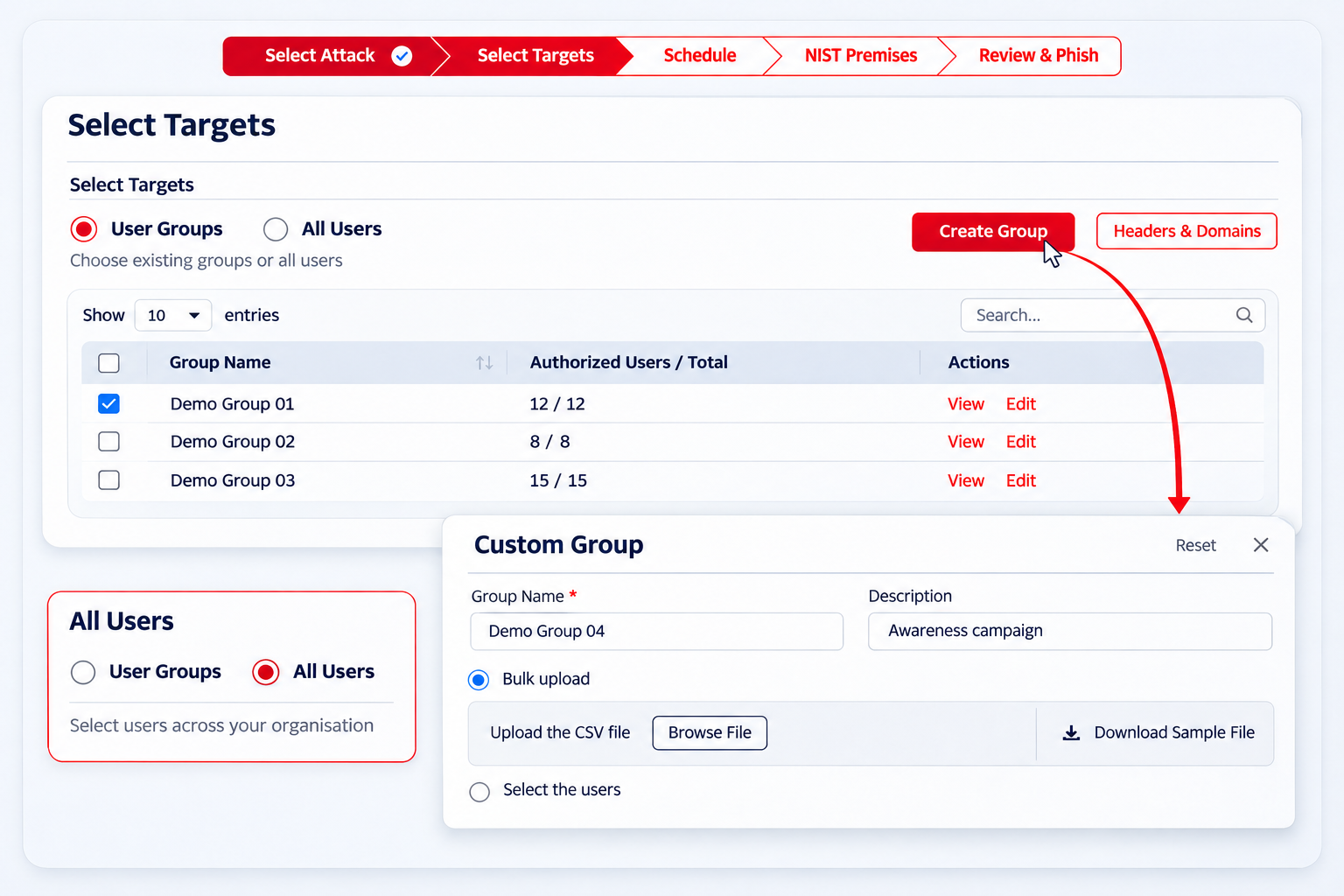
Select users across your organisation when you want to run a broader phishing simulation and understand how employees respond to a shared scenario.

User Groups

Choose an existing employee group or create a custom group to focus the campaign on particular teams, functions or learning needs.

Creating a group: Give the group a name and, if useful, a description. Then add the required employees directly or upload a CSV file using the downloadable sample format.

S-Phish Select Targets: choose user groups or create a custom group

Schedule

Decide When Your Simulation Runs and What Happens Next

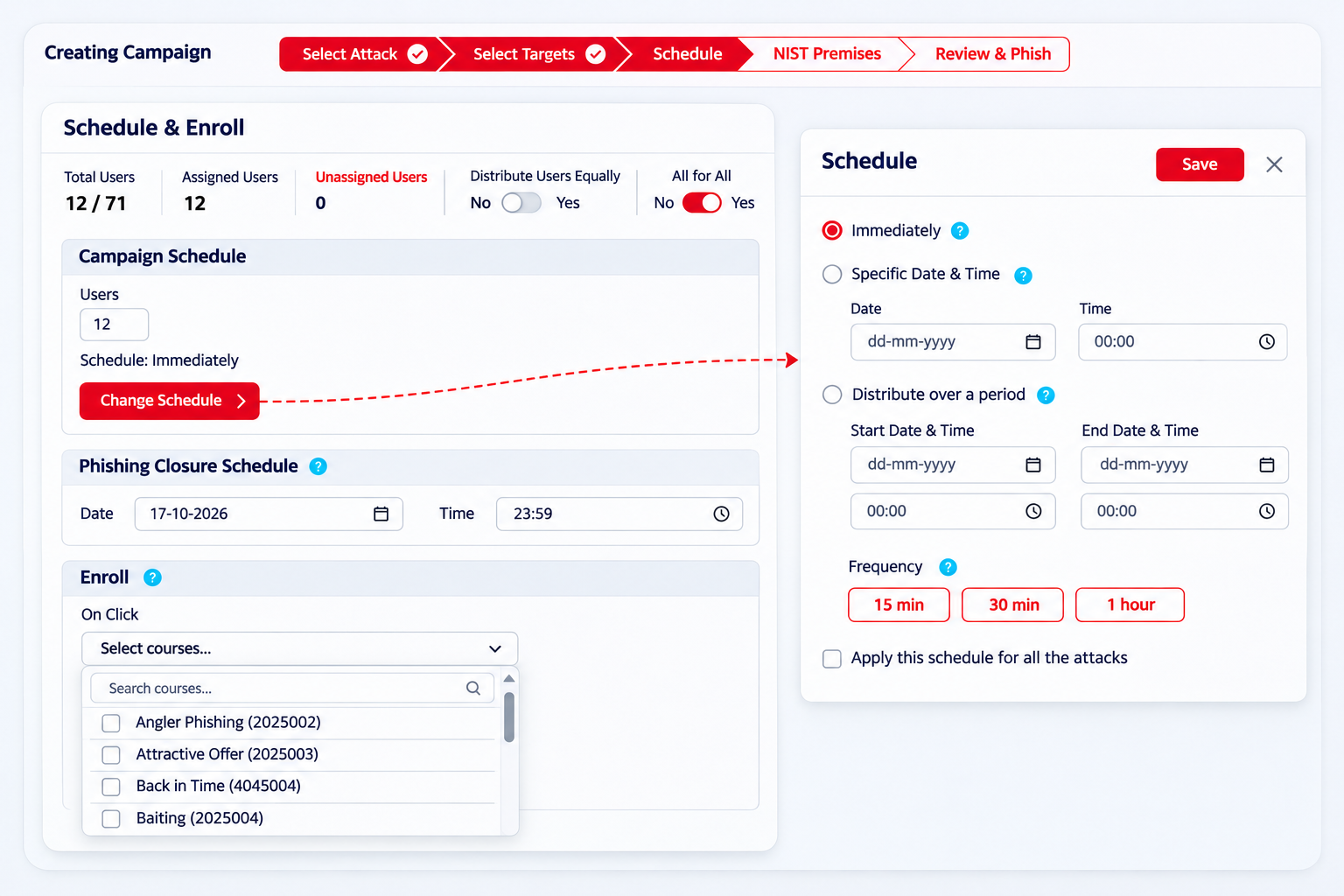
With your attack templates and target employees selected, it's time to configure how the campaign will run. S-Phish gives you control over employee allocation, delivery schedules, campaign closure and the learning that follows a simulated phishing click.

Choose How Employees Receive the Simulations

When your campaign includes multiple attack templates, S-Phish lets you control how employees are allocated across them.

Distribute Users Equally

Yes: Employees are distributed as evenly as possible across the selected attack templates, so different groups receive different simulations.

No: Employees are not automatically distributed equally. You can manage their allocation across the selected templates.

All for All

Yes: Every selected employee is included in each attack template, allowing you to test the same audience against multiple phishing scenarios.

No: Employees are not automatically included in every template. Their participation depends on how they have been allocated.

You can also review the total, assigned and unassigned user counts to check that your intended audience is covered before scheduling the campaign.

S-Phish Schedule and Enroll: set campaign timing and enrollment

Schedule the Campaign Your Way

Send Immediately

Launch the simulation without scheduling a later date.

Specific Date & Time

Select the date and time when the simulation should begin.

Distribute Over a Period

Set a start and end date, with delivery intervals of 15 minutes, 30 minutes or one hour.

Set When the Simulation Ends

Define the phishing closure date and time to establish a clear endpoint for the campaign.

Connect Phishing Simulations with Follow-Up Learning

Use the On Click enrolment option to select relevant training courses for employees who click a simulated phishing link.

S-Phish automatically enrols those employees in the selected learning, connecting the simulated phishing experience with an opportunity to reinforce safer security behaviours.

NIST Premises (Optional)

Understand What Makes a Phishing Scenario Convincing

The National Institute of Standards and Technology (NIST) develops cybersecurity guidance and frameworks that help organisations understand, manage and reduce cybersecurity risks.

The NIST Cybersecurity Framework (CSF) provides a structured approach to managing cybersecurity risks, including identifying threats, protecting systems and improving an organisation's ability to respond to security incidents.

In phishing awareness, understanding why employees might respond to suspicious messages is equally important. Some emails create urgency, while others appear familiar or imitate routine workplace activities.

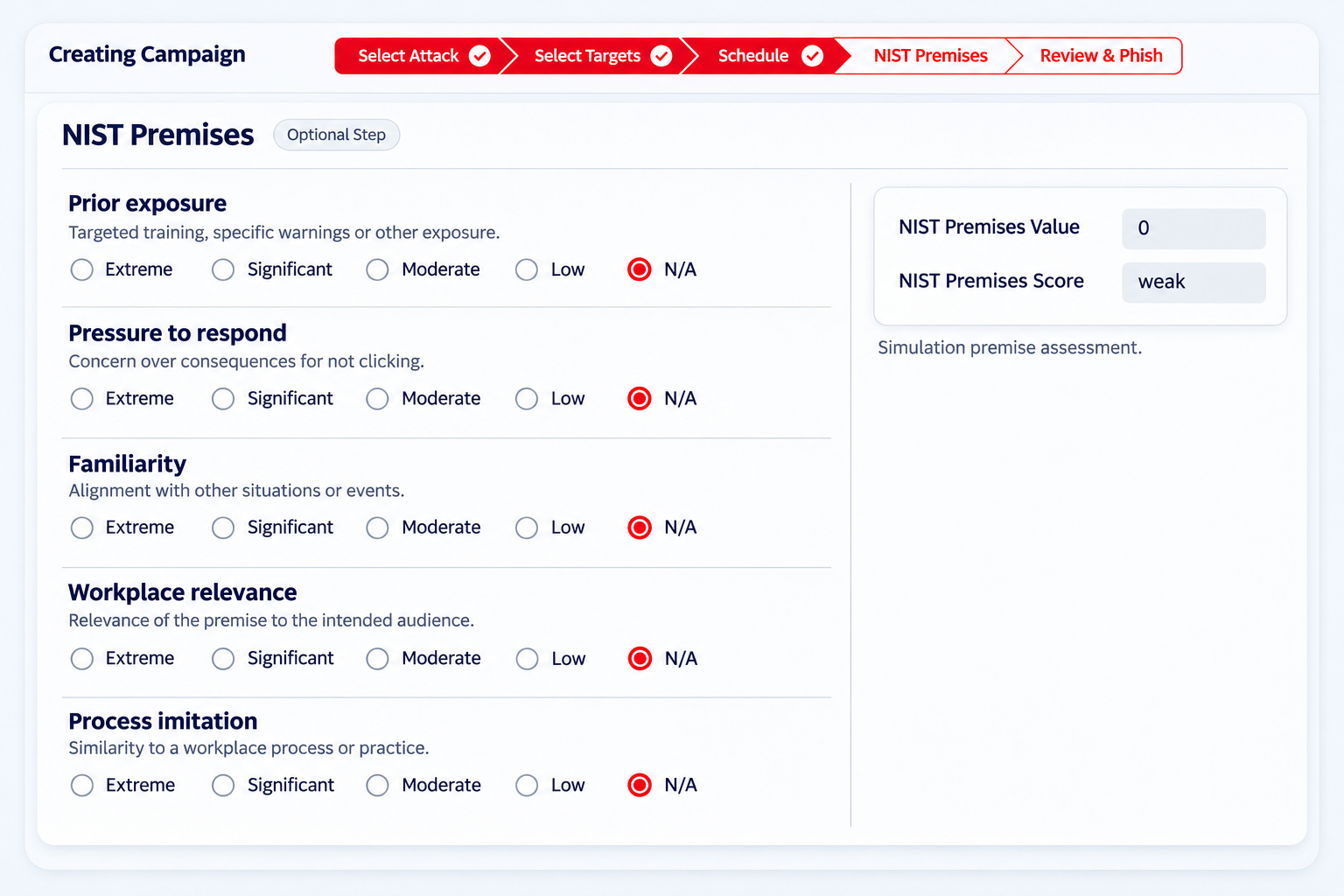
S-Phish includes an optional NIST Premises assessment that allows security teams to evaluate the context and persuasive elements of a simulated phishing scenario before launching the campaign.

Assess the Scenario Using Five Factors

Prior Exposure

Have employees already encountered this type of threat through training or previous warnings?

Pressure to Respond

Does the message create urgency or suggest consequences for not responding?

Familiarity

Does the scenario relate to events or situations employees may recognise?

Workplace Relevance

Is the message believable within the employees' working environment?

Process Imitation

Does the scenario resemble an established workplace process or routine?

Rate the Scenario Before Launch

For each factor, select the appropriate rating:

Extreme Significant Moderate Low N/A

S-Phish displays a premise value and score based on your selections, providing additional context for evaluating the simulated attack.

Why Use NIST Premises?

This optional assessment helps security teams consider the circumstances that may make a simulated phishing message more persuasive to employees.

By evaluating these factors, organisations can better understand the context of their phishing simulations and make more informed decisions when planning awareness campaigns.

You can complete the assessment or skip this step and proceed to the final campaign review.

S-Phish NIST Premises assessment dashboard

Review & Phish

Everything in Place? Give Your Campaign One Final Look.

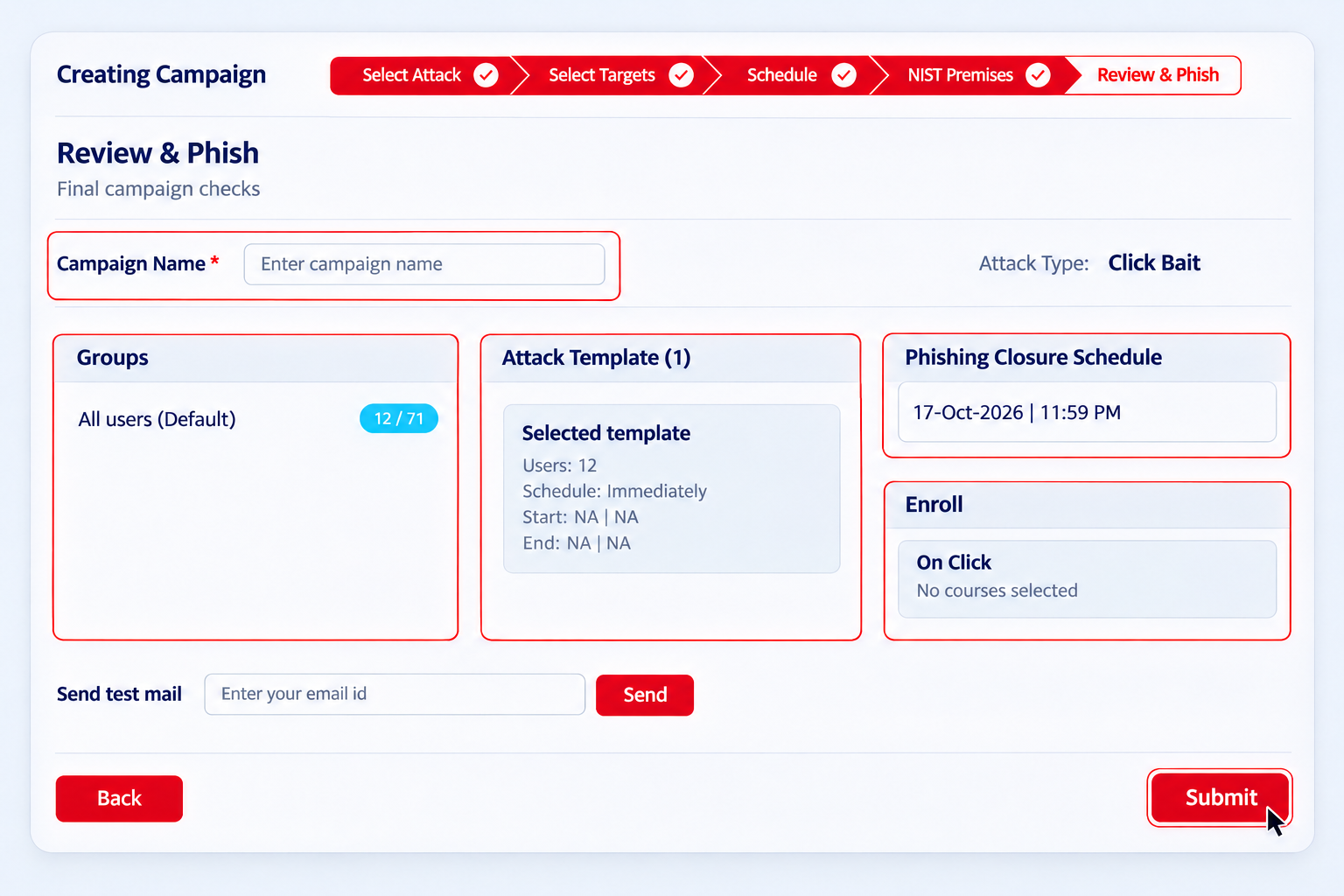
Before the simulation goes live, S-Phish brings the campaign decisions together for a final review. This is the opportunity to confirm that the scenario, audience, timing and learning response all reflect what you intended to test.

S-Phish Review and Phish campaign dashboard

A Final Check Across the Campaign

  • Campaign identity: Give the simulation a clear, recognisable name.
  • Attack selection: Confirm the chosen attack type and templates.
  • Audience: Review selected groups and assigned users.
  • Timing: Check the sending schedule and campaign closure.
  • Learning response: Confirm courses selected for On Click enrolment.

Test before you send. S-Phish includes an option to send a test email, allowing a final check of the simulated message before submitting the campaign.

Ready to Phish. Ready to Launch.

After Launch: Monitor Responses and Reinforce Learning

Review campaign status and employee responses through S-Phish's campaign reporting. Track relevant indicators such as email delivery, link clicks and reporting behaviour, alongside remedial training completion where assigned.

Use these insights to identify where further reinforcement may be needed and plan future simulations around those learning needs.

Explore S-Phish reporting

Customise and Configure Your S-Phish Campaigns

Customise Your Simulations. Configure Delivery. Support Phishing Reporting.

Every organisation has different security awareness priorities, employee groups and email environments. Beyond creating phishing campaigns, S-Phish provides a dedicated Settings area where administrators can manage simulation content, configure authorised domains and access guidance for campaign delivery and phishing reporting.

These settings support the preparation and management of phishing simulations without having to configure everything from scratch for each campaign.

1. Manage Your Simulation Assets

Build and Organise the Content Behind Your Campaigns

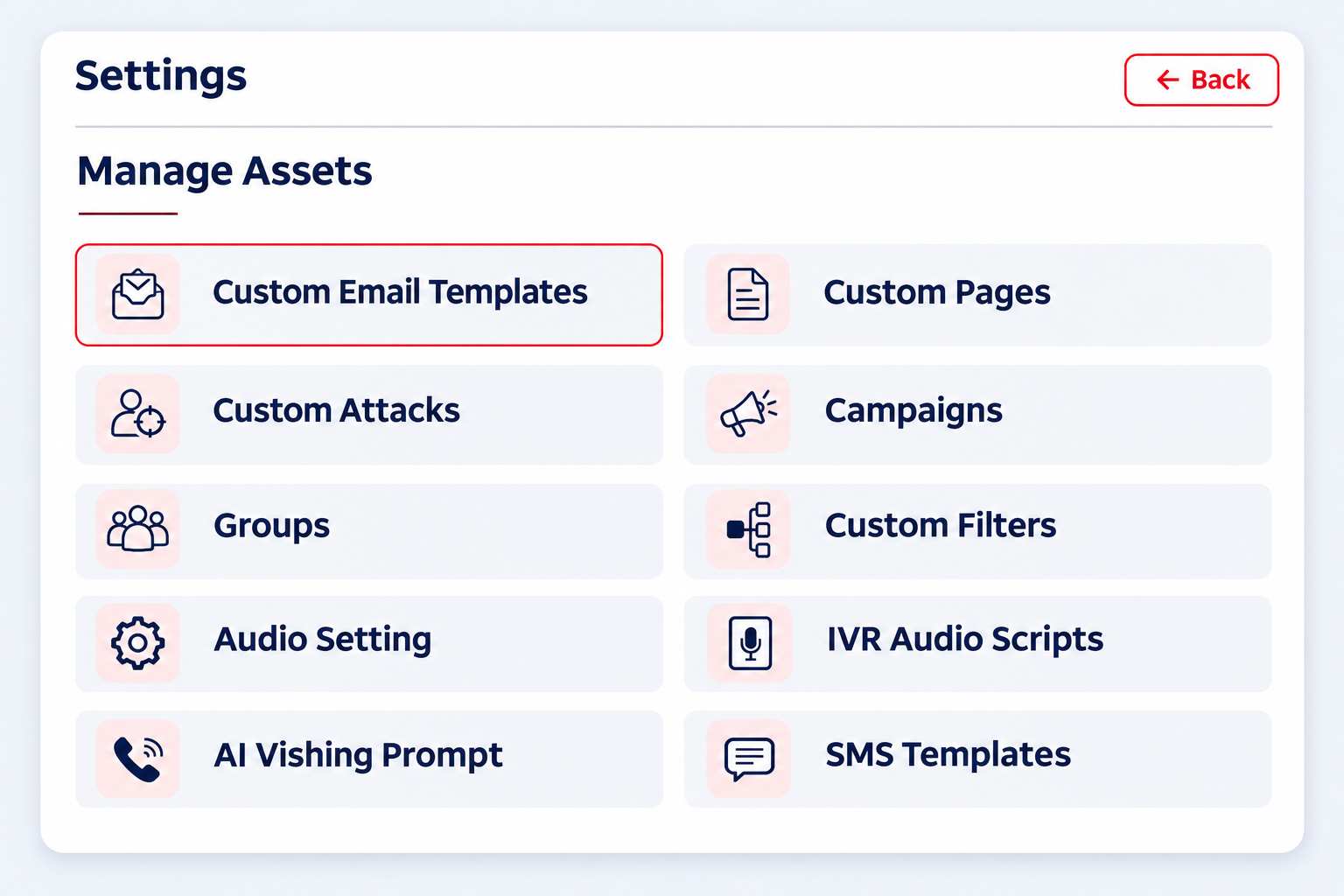
S-Phish provides a central area for managing the content and supporting assets used across different phishing simulation formats.

Custom Email Templates

Create and manage email templates tailored to your organisation's simulation requirements. These can be used to develop phishing scenarios that reflect the types of messages employees may encounter.

Custom Pages

Manage custom pages used within your phishing simulations, allowing you to tailor the experience employees encounter when interacting with a simulated attack.

Custom Attacks

Manage custom attack configurations to support phishing scenarios beyond the standard templates available in the platform.

Campaigns and Groups

Access campaign and group management options to organise simulation activities and employee audiences.

Custom Filters

Manage custom filters to support the organisation and selection of relevant simulation assets.

Additional Assets for Other Simulation Formats

The Settings area also includes options for managing assets associated with other supported simulation formats.

SMS Templates

Manage message templates for SMS-based phishing simulations.

IVR Audio Scripts

Manage audio scripts used in interactive voice response-based simulation scenarios.

AI Vishing Prompts

Access settings for prompts used in AI-based voice phishing simulations.

Audio Settings

Manage audio-related configurations for applicable simulation formats.

Together, these options provide administrators with a central place to prepare and organise the different assets used in their security awareness campaigns.

S-Phish Settings: manage simulation assets including templates, pages and attacks

2. Manage Deliverability

Configure Authorised Domains and Custom Email Headers

For phishing simulations to work as intended, organisations need to prepare the email environment through which simulated messages will be delivered.

S-Phish includes an Authorised Domains and Custom Headers section within Settings.

Authorised Domains

Manage organisational domains authorised for use within phishing simulation configurations.

This helps administrators work with approved domains rather than relying on unverified email domains.

Custom Headers

Manage custom email headers associated with phishing simulation delivery requirements.

These settings help organisations prepare the technical configuration needed to support their simulation campaigns.

Important: Generic public email domains are not supported for authorisation.

S-Phish Settings: deliverability and whitelisting configuration

3. Whitelisting Documentation

Prepare Your Email Environment for Phishing Simulations

Email security systems are designed to detect and block suspicious messages. Because phishing simulations deliberately resemble suspicious emails, organisations may need to configure their email environments to allow authorised simulation messages to reach employees.

S-Phish provides dedicated whitelisting documentation for:

  • Google Workspace
  • Microsoft environments

Administrators can refer to the relevant documentation when preparing their organisation's email security configuration for phishing simulations.

This helps IT and security teams understand the steps required to support authorised campaign delivery within their existing email environment.

Report Phishing Documentation

Support Employee Phishing Reporting

Phishing simulations are not only about identifying employees who interact with suspicious messages. They can also support awareness of the importance of recognising and reporting potential phishing attempts.

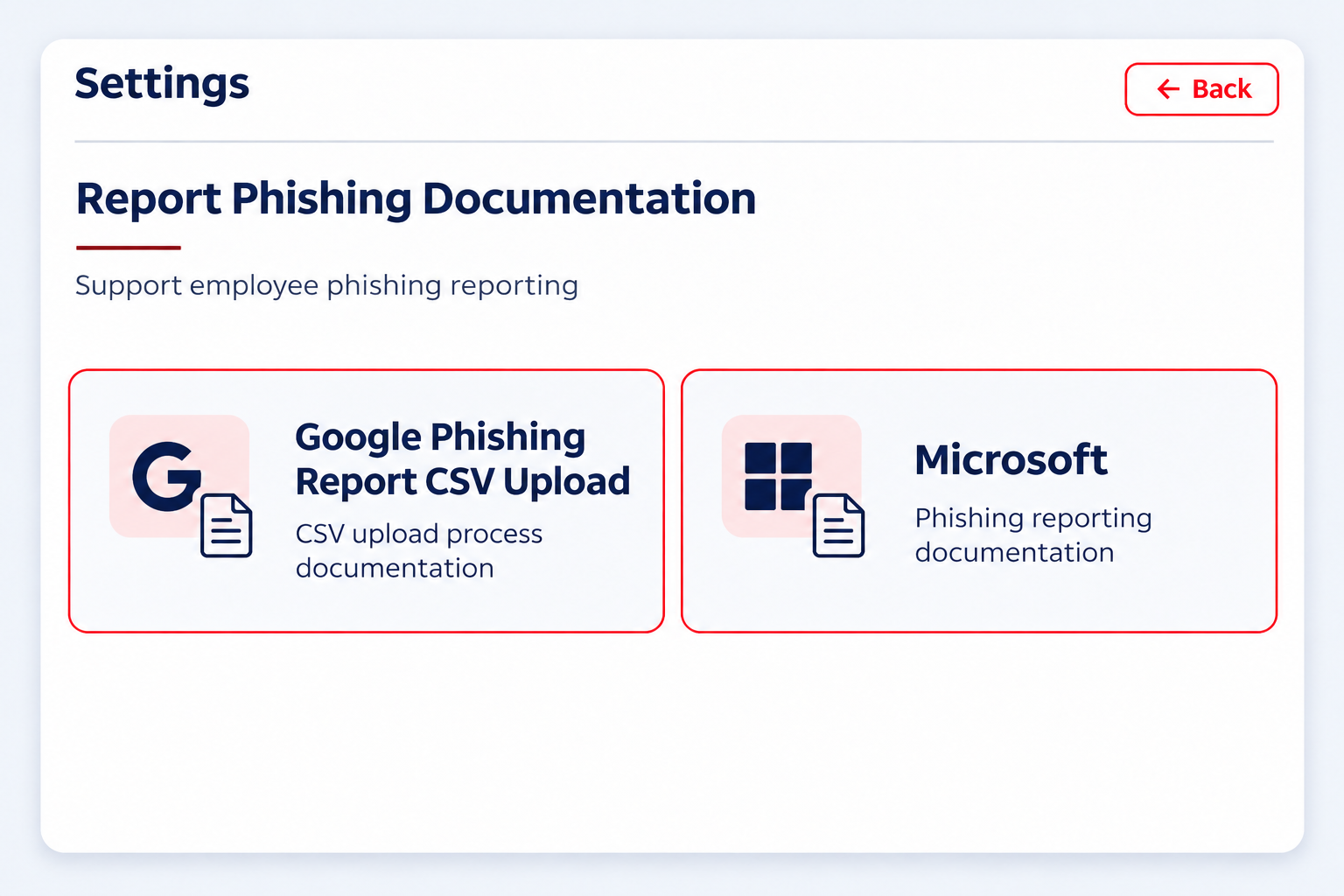
The S-Phish Settings area provides dedicated phishing-reporting documentation for Google and Microsoft environments.

Google Phishing Report CSV Upload

Access documentation relating to the Google phishing-report CSV upload process.

Microsoft Phishing Reporting

Access Microsoft-specific documentation relating to phishing reporting.

These resources provide administrators with guidance relevant to the reporting processes supported within their email environments.

S-Phish Settings: phishing reporting documentation for Google and Microsoft

Don't Just Run a Phishing Test.
Build on What It Teaches You.

From realistic attack scenarios and targeted delivery to remedial learning and campaign review, S-Phish helps organisations make phishing simulations part of an ongoing security awareness programme.

Request an S-Phish Demo