Keep learner profiles aligned
Map employee names, departments, managers and selected custom attributes to LMS profiles.

SucceedLEARN + HiBob
Bring employee data and learning administration together. Sync people from HiBob, assign relevant courses and return certificates and task updates through the features you choose.
For HR administrators, L&D managers and system owners.
YOUR HR DATA. YOUR LEARNING PLATFORM.
01 / CONNECT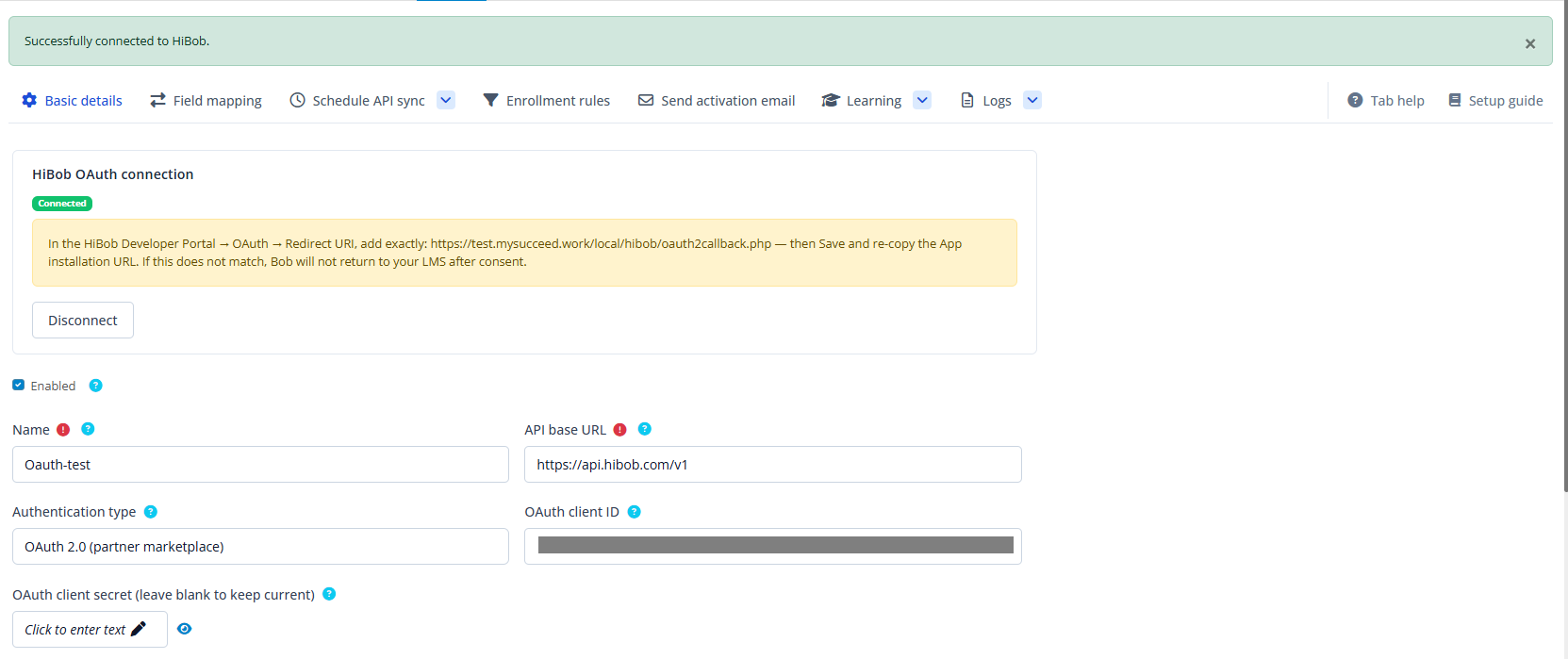
A connected learning workflow
The integration connects HiBob employee information with SucceedLEARN administration. Configure the features your organisation needs, from importing learner profiles to making completion records available in Bob.
Map employee names, departments, managers and selected custom attributes to LMS profiles.
Use profile-based rules to enrol employees in the right courses, with due dates and mandatory settings.
Upload issued certificates to the employee's Bob documents, with upload results for administrators.
Connect course completions to open, assigned Bob tasks using exact task names and All or Any criteria.
Made for your administration team
Bring HR, learning and technical owners together to agree access, mapping and the features you want to use.
Check the prerequisitesAgree which employees the connection can access and arrange the appropriate Bob permissions.
Set profile mappings, course rules, activation emails and the completion features your organisation needs.
Prepare connection credentials, API access, public URLs and webhook or OAuth configuration where required.
The complete administrator guide
All 16 sections of the supplied guide, organised for practical use. Most settings are optional unless your integration plan requires them. Start with your connection, then choose the features you need.
Showing all 16 guide sections. Open any technical detail for more information.
Try a shorter term, such as "email", "task" or "sync".
PREPARE
Confirm the access, connection method and features your organisation needs before you begin. This guide is for HR administrators, L&D managers and system owners.
| Requirement | Owner | Why it matters |
|---|---|---|
| Bob Admin access | HR / IT | Use a Bob Admin account, or ask a Bob Admin to create the service user. Admin access is needed for System settings, Service users and Permission groups. |
| LMS administration access | LMS admin | An LMS site admin, or a role with the HiBob manage capability, creates the integration and saves connections, mappings and schedules. |
Outbound HTTPS to api.hibob.com | IT / network | The LMS server must reach Bob's API. A blocked connection prevents employee sync and learning calls. |
| A decision on the features to enable | HR / L&D | For employee sync, choose a daily schedule or webhooks for the company. Enrolment rules, activation emails, Learning provider, Goals, Docs certificates and Tasks are optional. |
| HiBob Developer Portal access | Partner / IT | Required for Marketplace partner apps using OAuth; not needed for a service-user setup. |
| A public LMS HTTPS URL | IT | Required so Bob can reach the LMS webhook endpoint and OAuth redirect when those features are used. |
Source: supplied HiBob Administrator Guide, pp. 1 - 2.
PREPARE
Use these steps if you will connect with a service-user ID and token. A service user exists for API access: it is not an employee login and cannot sign in to Bob. OAuth connections follow section 5 instead.
Open app.hibob.com. If you cannot see System settings, ask a Bob Admin to complete these steps and share the ID and token securely.
Open the Bob menu at the top left, then select System settings.
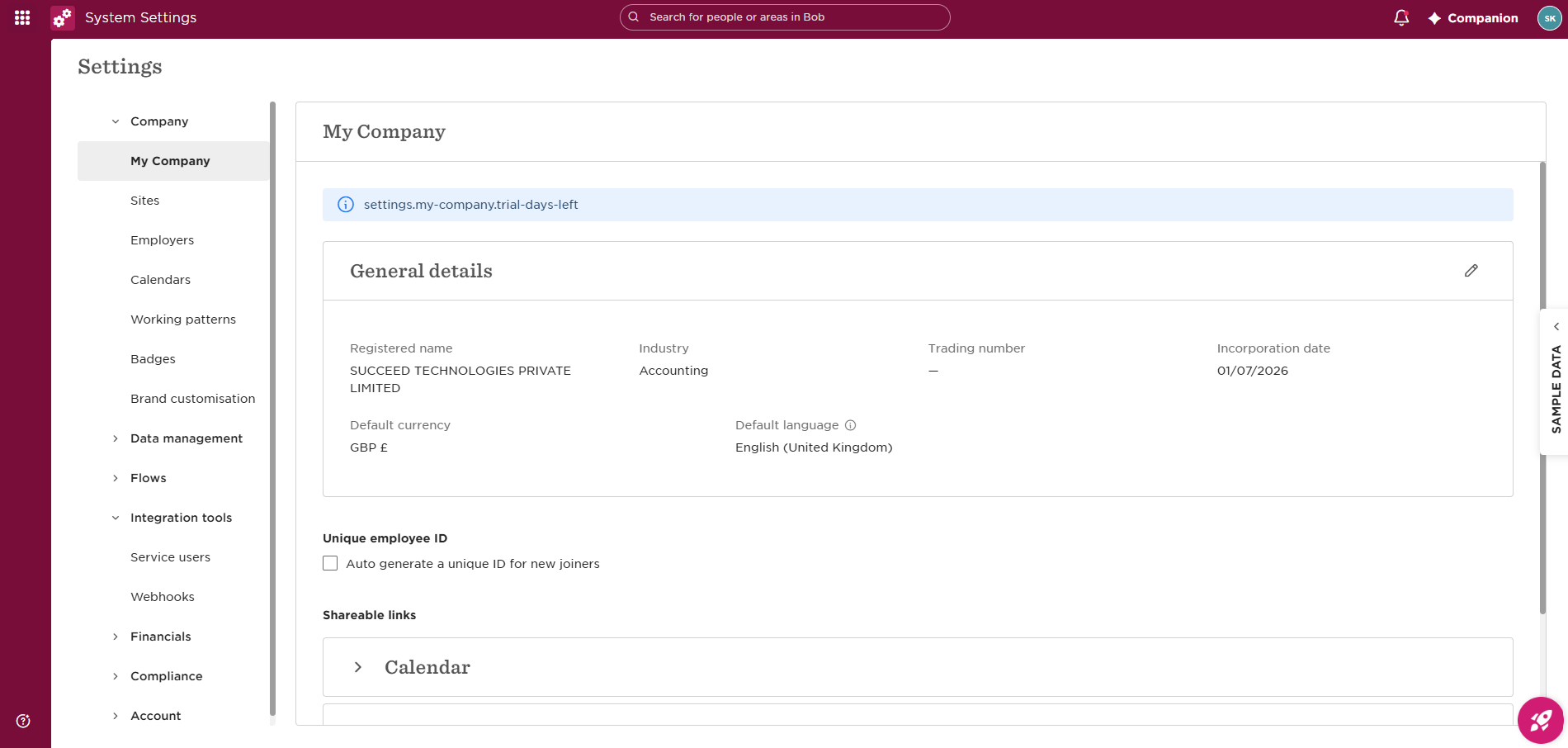
Go to Integrations → Service users → Manage. In the supplied sidebar screenshot, the group is labelled Integration tools.
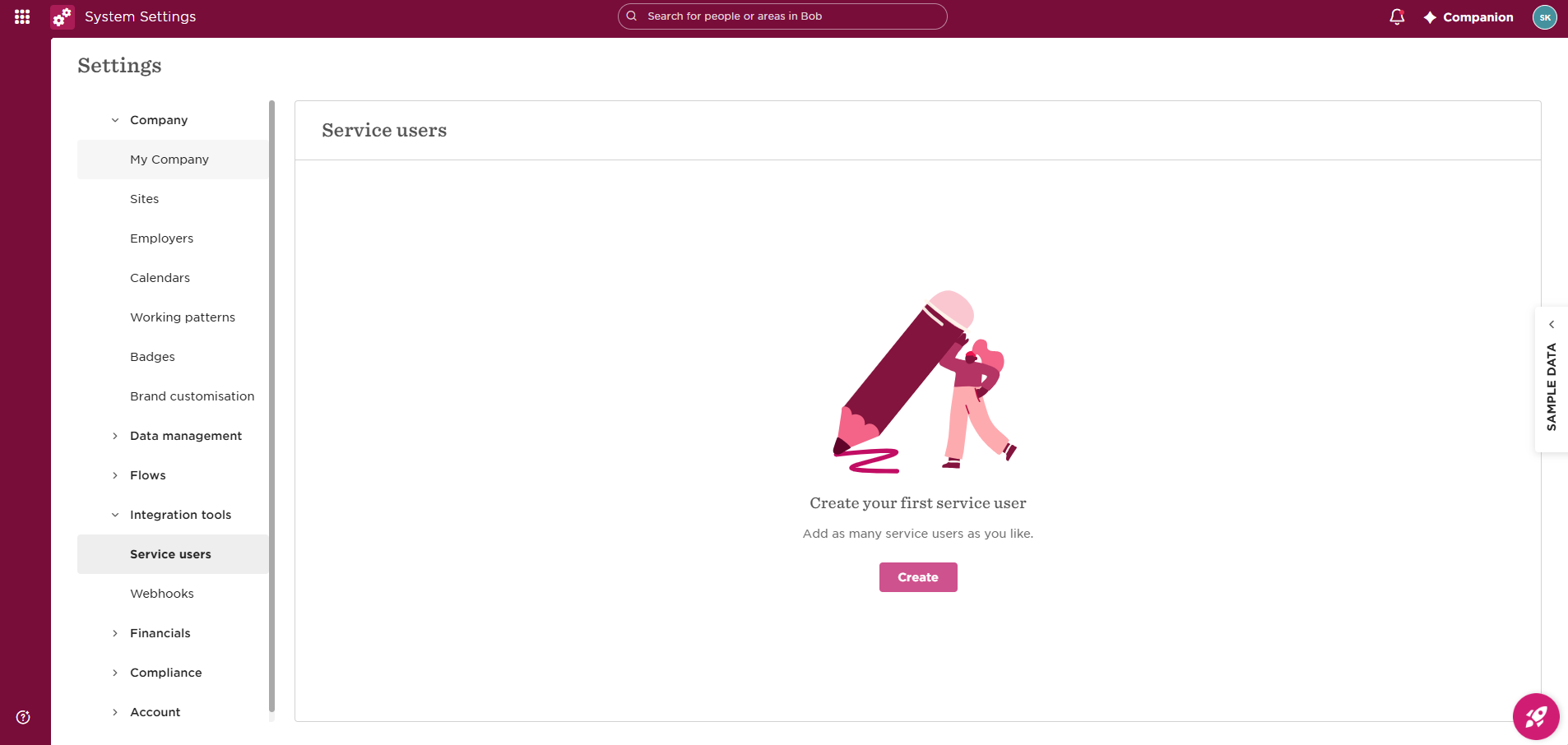
Select + Create service user, enter a clear display name such as Succeed LMS integration, and save.
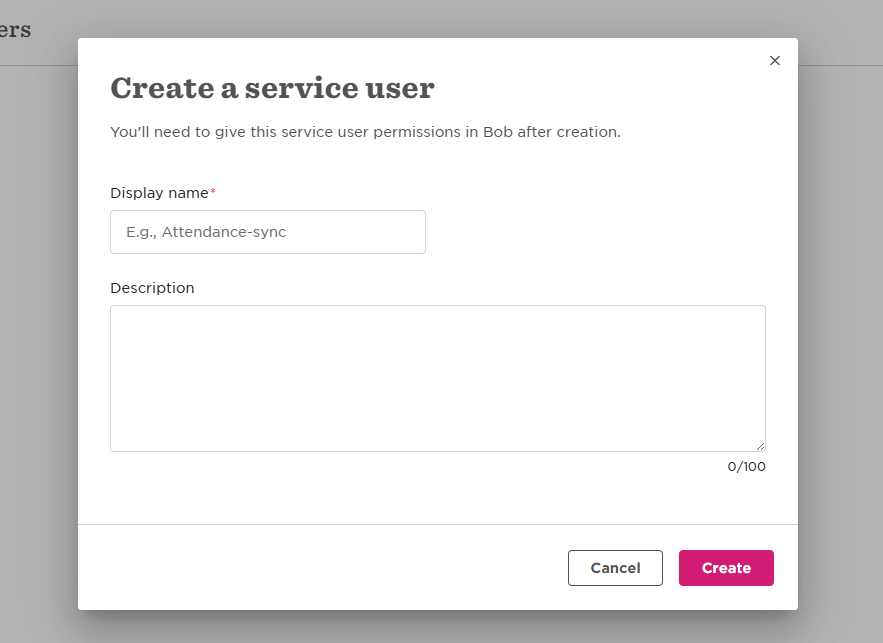
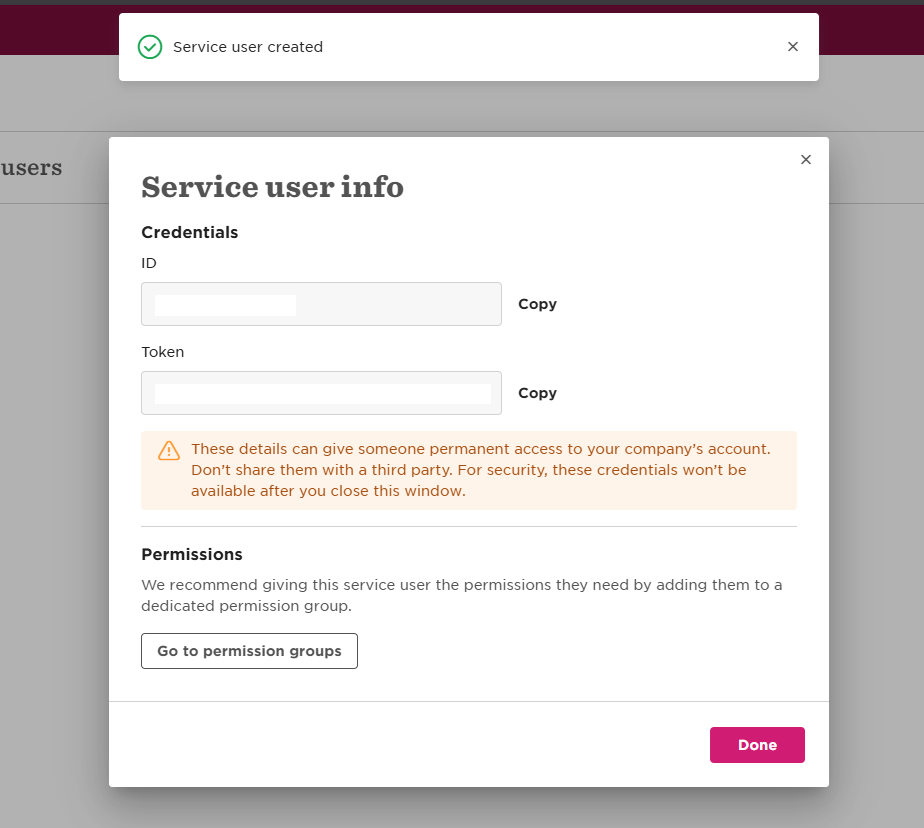
Bob displays an ID, for example SERVICE-39971, and a secret token. Copy both into your password manager before closing the window. Redact credentials before sharing screenshots.
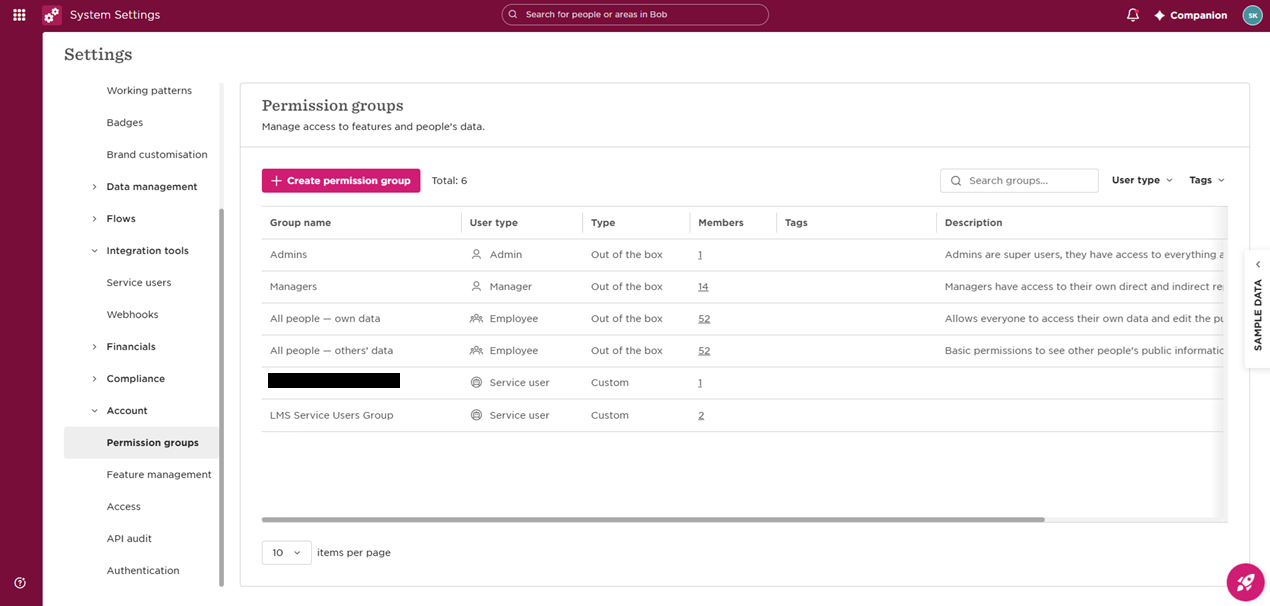
Go to System settings → Account → Permission groups → + Create permission group. The page is at app.hibob.com/app-settings/permission-groups.
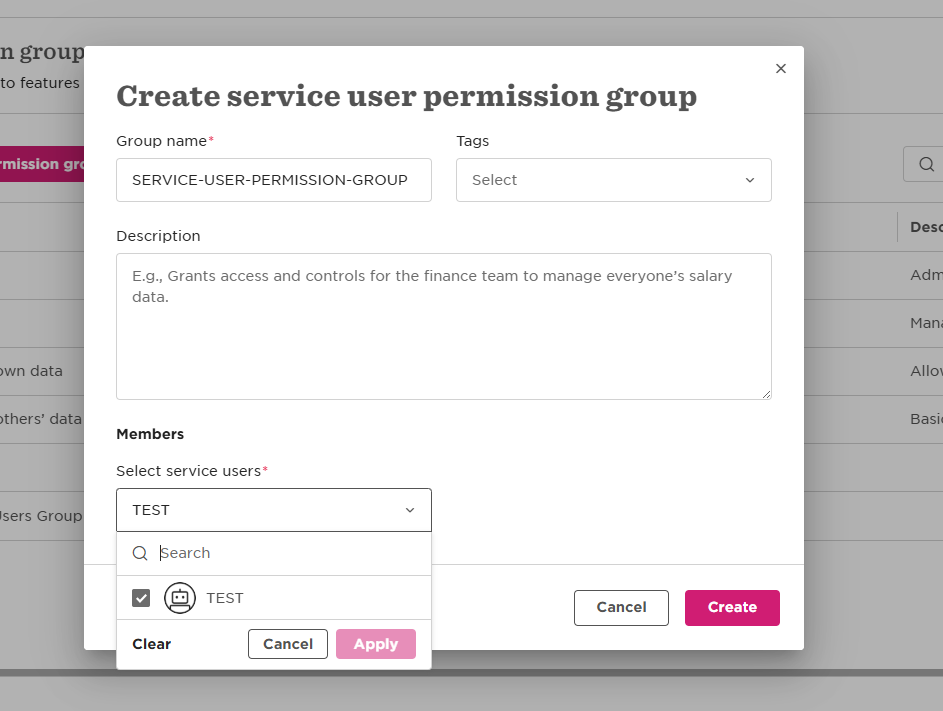
Name the group, for example LMS Service Users Group. Set User type to Service user, add the new service user as a member, and save.
Related official reference: API Service users.
Source: supplied HiBob Administrator Guide, pp. 2 - 6.
PREPARE
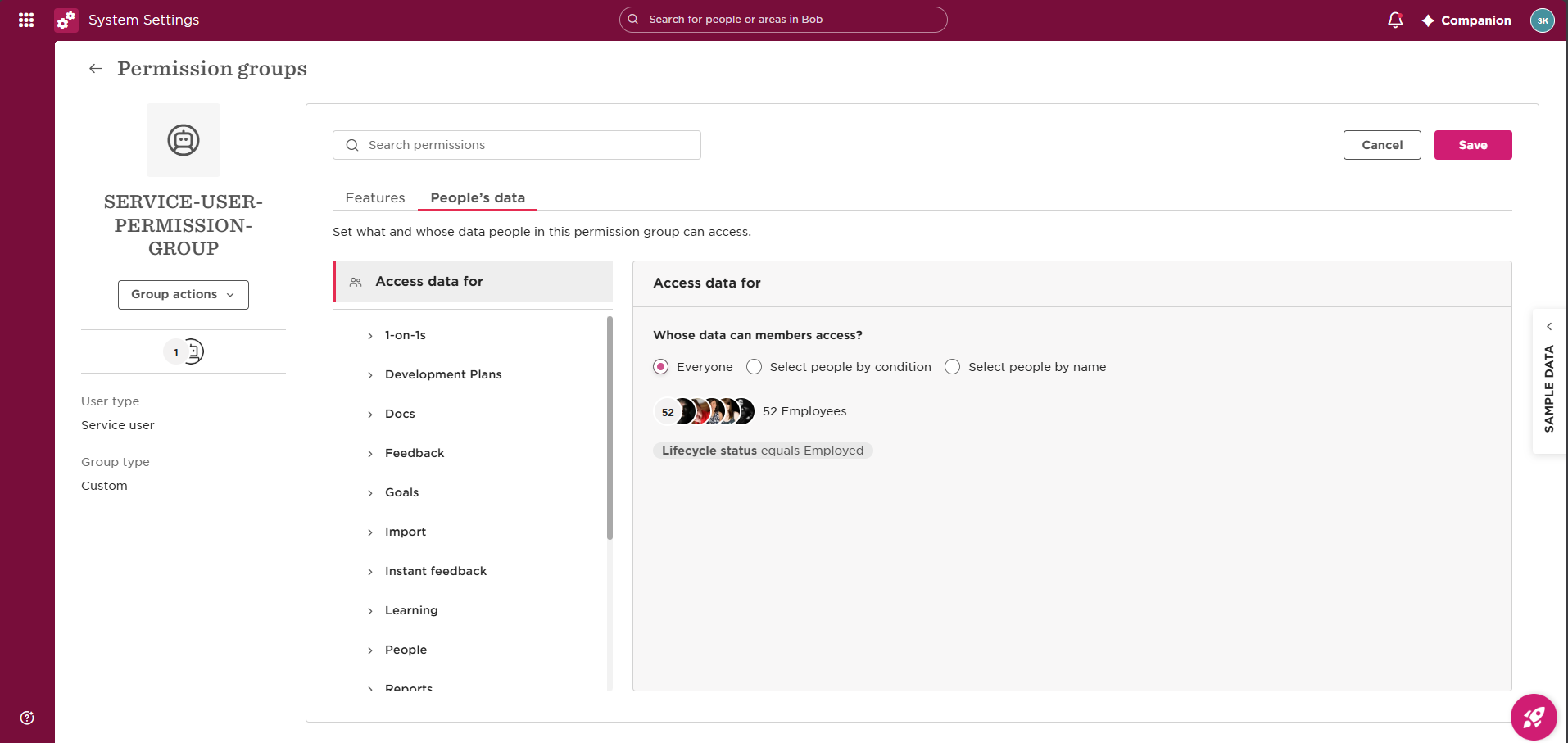
Edit the service user's permission group. Bob organises the settings into Features, People's data and Access rights. Grant the permissions needed for the features you use.
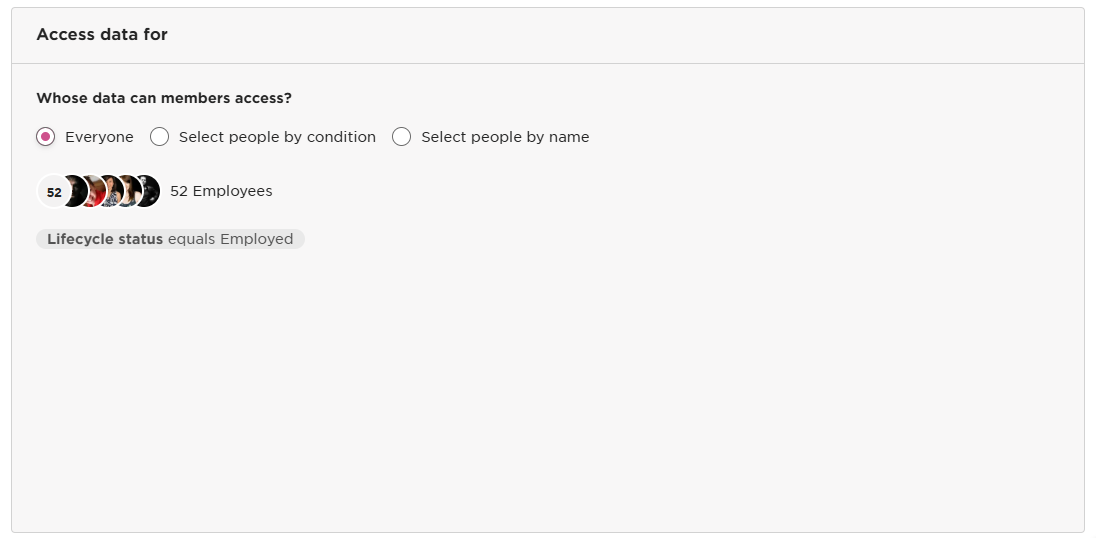
Open People's data → Access data for.
Choose Everyone for a typical organisation-wide setup, or limit access by condition or by name.
If you need to sync or suspend leavers and inactive employees, select by condition and remove Lifecycle status equals Employed so terminated people are included.
Grant View on the default categories: Basic info/root, About, Employment and Work. Without them, People Search can return empty data.
| Bob permission | When it is needed |
|---|---|
| People → Basic info (root) - View | Always for employee sync |
| People → About - View | Always for employee sync |
| People → Work - View | Always for employee sync |
| People → Employment - View | Always for employee sync |
| People → Lifecycle - View | When syncing or suspending leavers |
| Extra categories for mapped custom fields | When those categories are used in Field mapping |
| LMS feature | Bob permission area |
|---|---|
| Employee sync | The People's data View permissions above, plus Access rights for the audience to sync |
| Certificate sync | People → Docs → Shared - Upload / View |
| Task mapping | Tasks and flow → People's tasks - View / Complete |
| Reports / Job catalog / Time off | Only if these advanced modules are used |
The employee counts and names in the screenshots are examples from the supplied guide.
Source: supplied HiBob Administrator Guide, pp. 7 - 8.
CONNECT
The API base URL is a site-wide setting on HiBob app, at /local/hibob/app_credentials.php. Keep https://api.hibob.com/v1 unless your IT team supplies a different host. The URL is copied to each company connection when that connection is saved.
On Connect to HiBob, switch Service user on and enter the service-user ID and token. The LMS uses Basic authentication for API calls.
Each service-user API request includes this header, using the actual ID and token:
Authorization: Basic Base64(SERVICE-USER-ID:TOKEN)| Purpose | Request |
|---|---|
| Connection test | GET /v1/company/people/fields |
| Employee sync | POST /v1/people/search |
These are API paths for the configured HiBob host; they are not pages to open in the LMS.
Related official reference: Authorization.
Source: supplied HiBob Administrator Guide, p. 8.
CONNECT
OAuth is the default connection method. Keep the Service user switch off. Configure the OAuth app once on HiBob app; each company connection uses that app configuration.
Create or open the app in the HiBob Developer Portal. Set its scopes and installation mode.
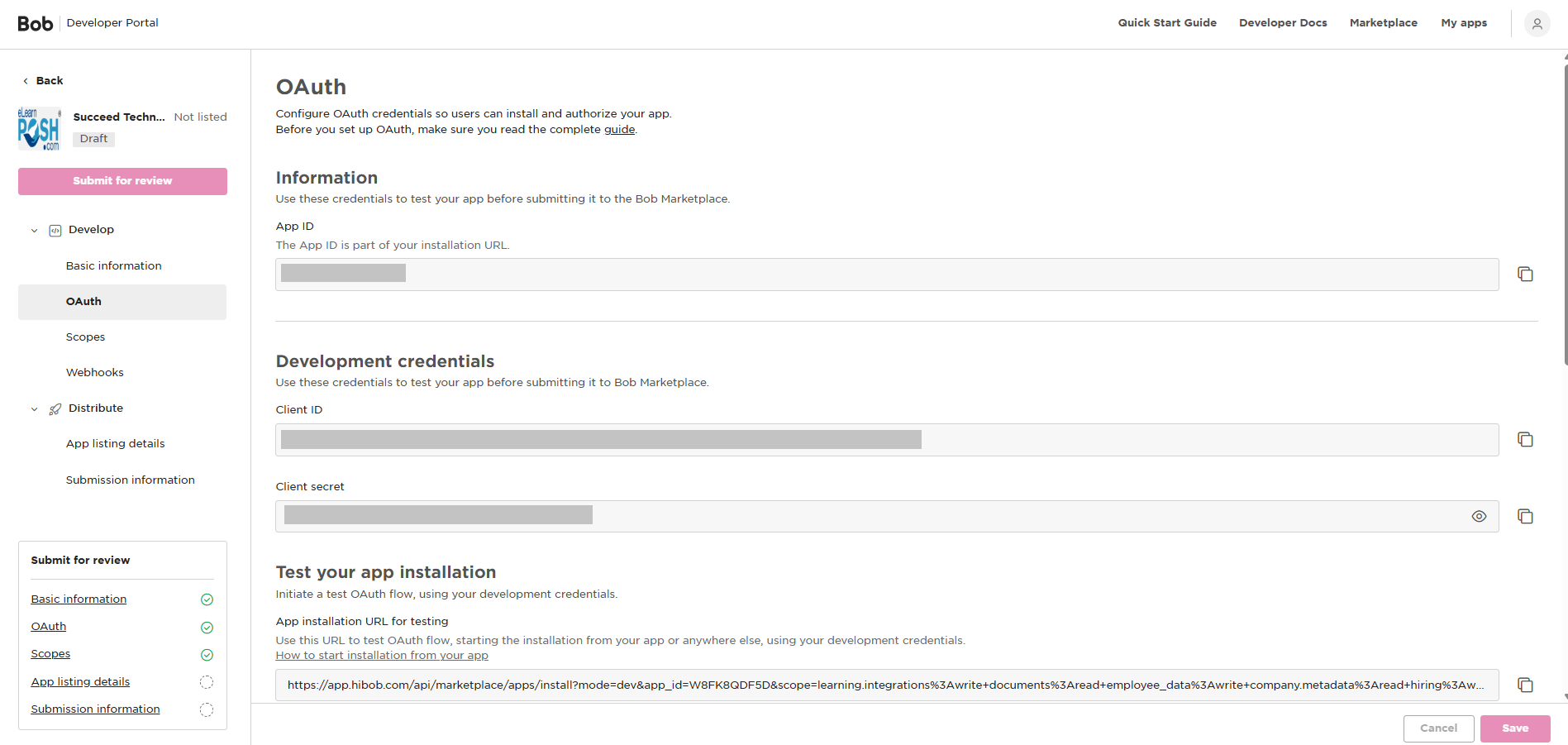
Copy the Redirect URI shown on HiBob app and register it in the Developer Portal. Its format is:
https://<lms-domain>/local/hibob/oauth2callback.phpReplace the example domain with the actual LMS domain by copying the value from your app settings.
On HiBob app, save the Client ID, Client secret and full App Installation URL. The installation URL contains the scopes. Paste the Developer Portal webhook secret into Webhook secret when using OAuth webhooks.
| Setting | Value / guidance |
|---|---|
| OAuth token URL | https://auth.app.hibob.com/oauth2/v1/apps/token |
| API base URL | https://api.hibob.com/v1, unless IT specifies otherwise |
| Redirect URI | Copy exactly from HiBob app and register in HiBob |
| Webhook URL and secret | Use the app-wide values for OAuth; see Synchronisation |
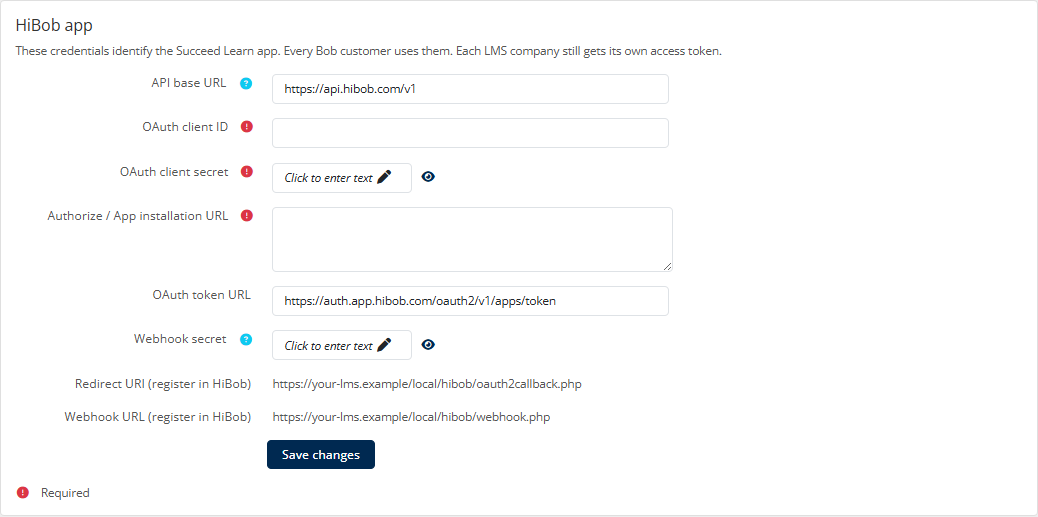
Open the company connection, leave Service user off and select Connect to HiBob. Review the requested permissions and choose whose people data the app can access, then select Authorize.
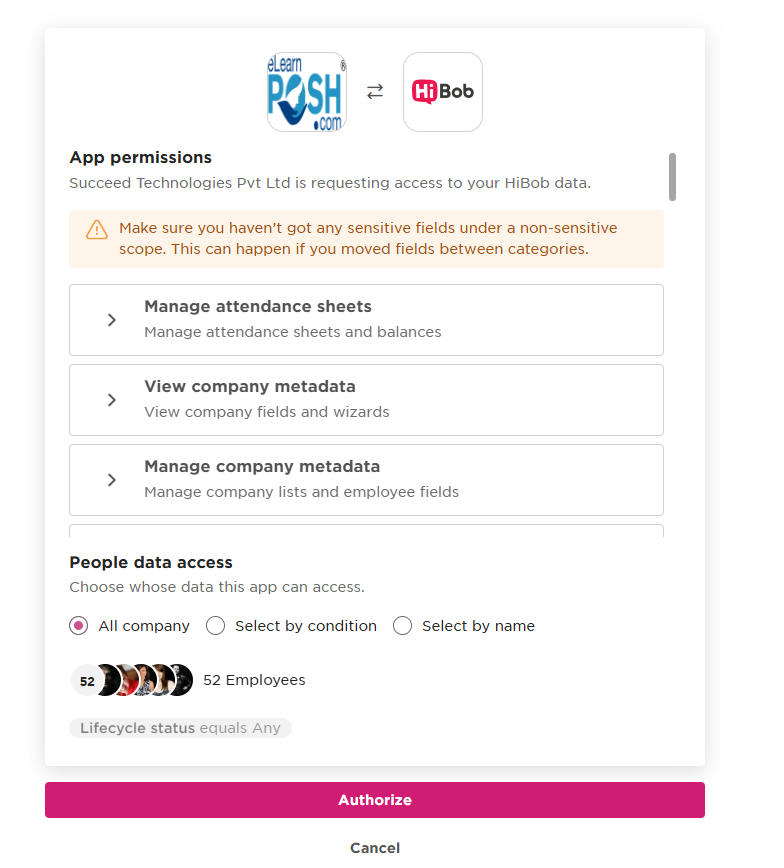
Recopy the App Installation URL after changing scopes. If renewed consent is required, uninstall and reinstall the app in Bob.
Related official reference: OAuth 2.0.
Source: supplied HiBob Administrator Guide, pp. 8 - 11.
SET UP
Follow this sequence for a typical employee-sync setup. Configure optional features only where your integration plan needs them.
Check the prerequisites. Prepare either the OAuth app or a service user with the required permission group.
In the LMS, open HiBob → Add integration, or select an existing instance. New connections are enabled and named automatically, such as HiBob or HiBob 2.
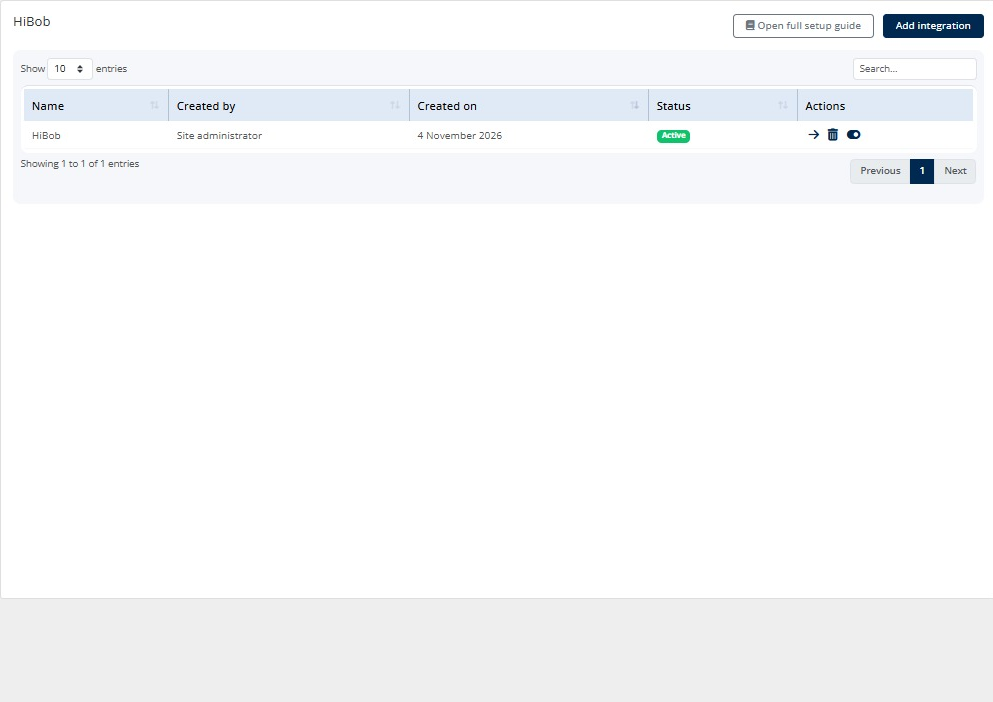
For OAuth, leave Service user off and select Connect to HiBob. For service-user authentication, turn the switch on and save the ID and token. OAuth app details and API base URL belong on HiBob app.
Check that the LMS can read employees from Bob.
Confirm first name and last name. Both email and username should use the work email. Save the mapping.
If needed, configure Enrollment rules, then Activation email, with immediate or delayed sending. Save both before the first import.
By default, course enrolment is applied when the account is created. See Enrollment rules for the optional Run at the time of sync behaviour. The welcome email is sent for newly created accounts.
On Synchronisation, select a daily schedule or webhook for this company, configure and save the shared user criteria, then use Initial run for the first import. OAuth uses one app-wide webhook URL and secret. A service-user connection uses its own URL and secret here. Then configure any optional Learning features.
Open Logs and confirm the run completed successfully.
Switch the connection off from the HiBob instances list. New connections start enabled.
Source: supplied HiBob Administrator Guide, pp. 11 - 12; enrolment sync-run detail in section 9, p. 18.
TAB 1
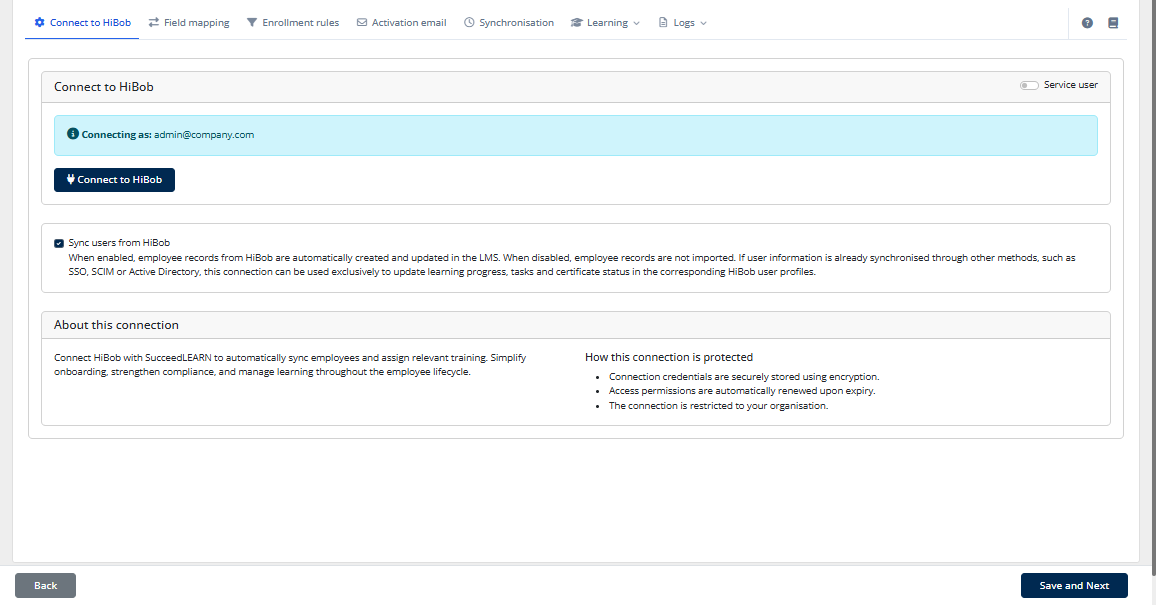
Connect the current LMS company to Bob. OAuth is the default; enable Service user only when you are entering a Bob service-user ID and token.
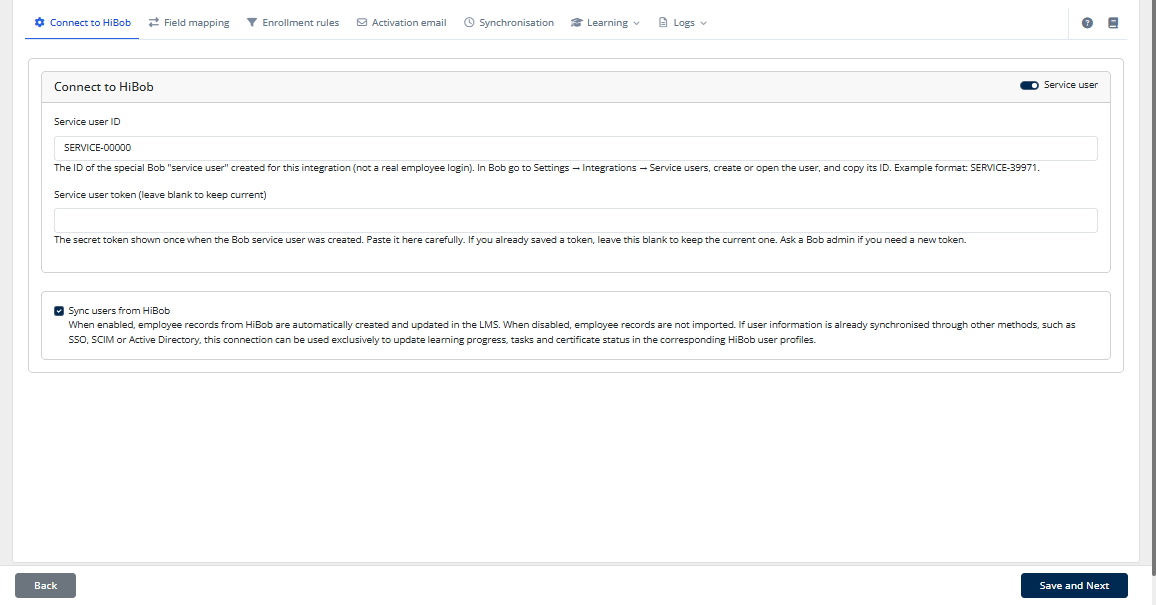
For OAuth, keep Service user off and select Connect to HiBob. For Basic authentication, turn it on, enter the ID and token, and save the connection.
| Setting | Default / requirement | What it does |
|---|---|---|
| Name | Automatic | The LMS assigns the connection name, for example HiBob or HiBob 2. You do not enter a name. |
| Enabled | On by default | Pause a connection using the toggle on the instances list, not on this page. |
| Service user | Choose one method | Off uses OAuth and the Connect to HiBob button. On displays ID/token fields for service-user authentication. |
| Service user ID / token | Required when Service user is on | Get these from Bob's Service users settings. Leave the token field blank to keep an already saved token. |
| Sync users from HiBob | On by default | Creates and updates employees in the LMS. Turn it off when users already arrive through SSO, SCIM or Active Directory and this connection should only update learning, tasks and certificates for a matching Bob employee. |
| About this connection | Shown for OAuth | Explains employee sync and training assignment. Its protection note covers encrypted credentials, renewed access permissions and access restricted to this organisation. |
| API base URL and OAuth app | Site-wide configuration | Configure these once on HiBob app, not on this page. The same API host is used for every company. |
| Mistake | How to correct it |
|---|---|
| Using an employee password | Create a dedicated service user and use its token, not an employee's password. |
| Changing the API URL on the wrong page | Update the host on HiBob app only if your IT team supplies a different value. |
| An OAuth redirect mismatch | Copy the Redirect URI from HiBob app into the Developer Portal exactly. Do not type it from memory. |
| Trying OAuth with Service user on | Turn Service user off to start OAuth. With the switch on, the page saves ID/token credentials. |
Source: supplied HiBob Administrator Guide, pp. 13 - 15.
CONFIGURE
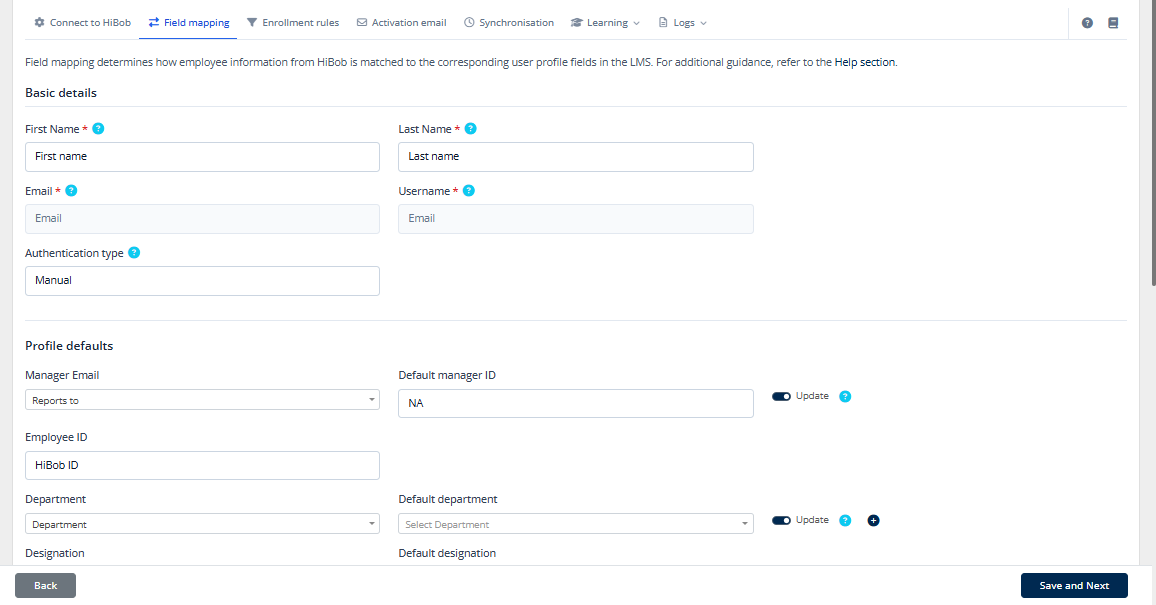
Choose which Bob employee details populate each LMS profile field, keeping names, emails and departments accurate.
This tab is required for employee sync. Most fields have sensible defaults. Settings are grouped into Basic details, Profile defaults and Custom attributes.
| LMS field | Requirement | Guidance |
|---|---|---|
| First Name | Required | Usually map to Bob First name. |
| Last Name | Required | Usually map to Bob Last name (surname). |
| Required | Fixed to the employee's work email from Bob. The control is disabled. | |
| Username | Required | Fixed to that same work email. The control is disabled. |
| Authentication type | Optional | Choose how new users sign in: Manual, OAuth, SAML or Token Auth. For SAML, choose identity provider(s) under SSO Auth Option. |
| Manager Email | Optional | Usually map to Reports to. The LMS links the manager if that person already has an account. |
| Default manager ID | Optional | Used when Bob has no manager. Tick Update to refresh on later syncs. |
| Employee ID | Optional | Store HiBob ID or Bob's Employee ID so later syncs can match the same person. |
| Department | Optional | Usually map to Bob Department. |
| Default department | Optional | Used when Bob has no department. Tick Update to refresh on later syncs. |
| Designation | Optional | Job title from Bob. |
| Default designation | Optional | Used when Bob has no title, for example Learner. Tick Update to refresh on later syncs. |
| Team ID | Optional | Maps Bob site or location. Leave blank if you do not use teams. |
| Default team ID | Optional | Used when Bob has no site. Tick Update to refresh on later syncs. |
| Phone Number | Optional | Choose work mobile, work phone, or leave unselected. |
| Custom attributes | Optional | Up to seven extra profile fields. Use the edit icon to rename each field with 100 characters or fewer. The first three default to City, Country and Site. Enrolment rules can match these attributes. |
Source: supplied HiBob User Guide, pp. 16 - 17.
CONFIGURE
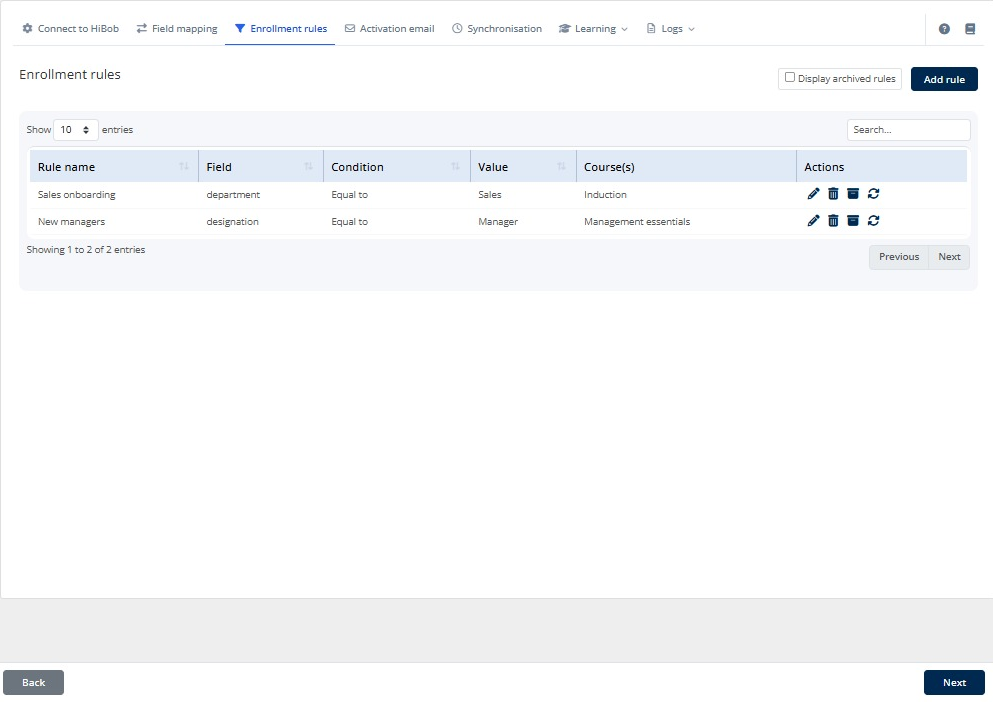
Automatically enrol people in LMS courses when their synced profile matches the rules you define.
The Enrollment rules tab is optional. Skip it if you enrol users manually or through another process. Save and Next on Field mapping opens this tab. Rules use the LMS profile after field mapping.
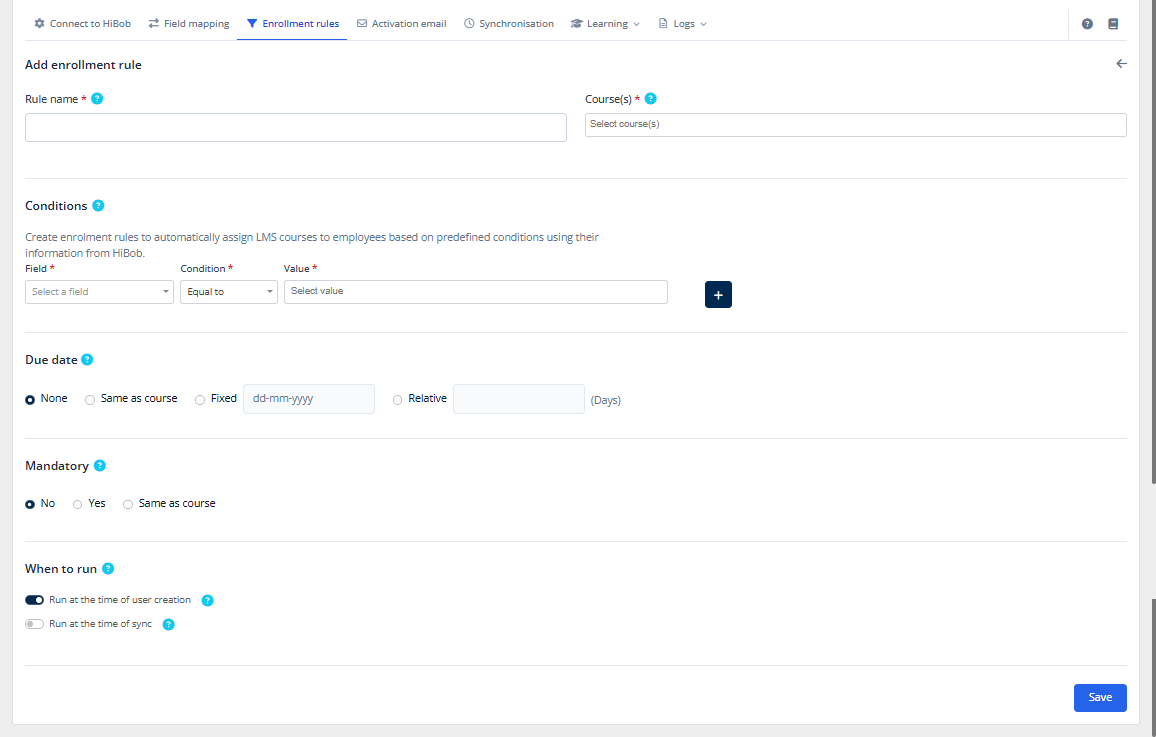
Choose Add rule. The list includes Display archived rules and columns for Rule name, Field, Condition, Value, Course(s) and Actions.
| Field | Requirement | Guidance | Example |
|---|---|---|---|
| Rule name | Required | Clear internal name, up to 60 characters. | Sales onboarding |
| Course(s) | Required | Beside the rule name. Select at least one LMS course. | Induction course |
| Conditions | Required | Add a field, comparison and value on each line. Use + for up to 10 lines. Conditions are explained below. | Department Equal to Sales AND Designation Equal to Manager |
| Due date | Optional | None, Same as course, fixed calendar date, or a relative number of days. | Relative, 30 days |
| Mandatory | Optional | No leaves the enrolment optional. Yes makes each selected course compulsory. Same as course uses the mandatory flag stored on each course. | Same as course |
| When to run | Required | Run at the time of user creation is on for a new rule. Run at the time of sync can also be enabled to apply rules when existing users are updated. | Both on |
Source: supplied HiBob User Guide, pp. 17 - 18.
CONFIGURE
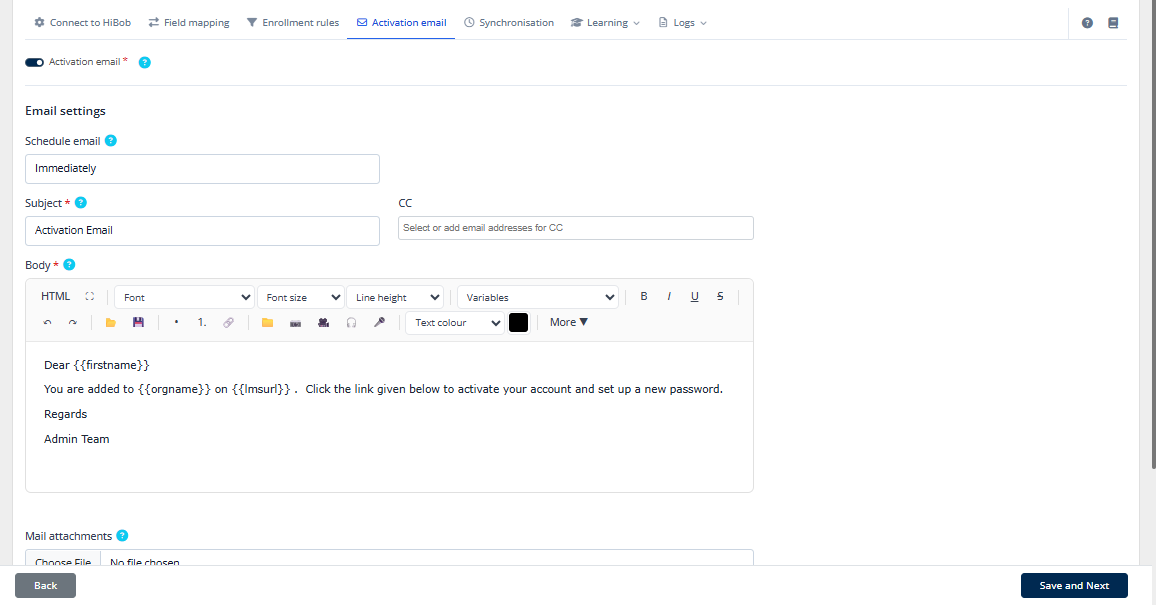
Welcome new users when their LMS account is created from Bob.
This step is optional if users receive their welcome through an SSO portal, HRIS email or another channel. Save and Next from Enrollment rules opens this tab; Save and Next here opens Synchronisation.
| Setting | Requirement | Guidance |
|---|---|---|
| Activation email | Master switch | When off, the Email settings section is unused. |
| Schedule email | Optional | Immediately, 12, 24 or 48 hours after creation, or Custom with a number of hours. A delay gives authentication time to finish. |
| Subject | Required when enabled | The subject recipients see in their inbox. |
| Body | Required when enabled | Write the message under Email settings. Use Variables for first name, last name, username, email, organisation, LMS URL or a set-password button. The email does not include a password. |
| CC | Optional | Copy HR or a shared mailbox on every activation email. |
| Mail attachments | Optional | One file, up to 10 MB. Accepted types: PDF, DOC, DOCX, ODT, XLS, XLSX, JPG, JPEG, PNG, CSV, GIF and TXT. |
Source: supplied HiBob User Guide, p. 19.
CONFIGURE
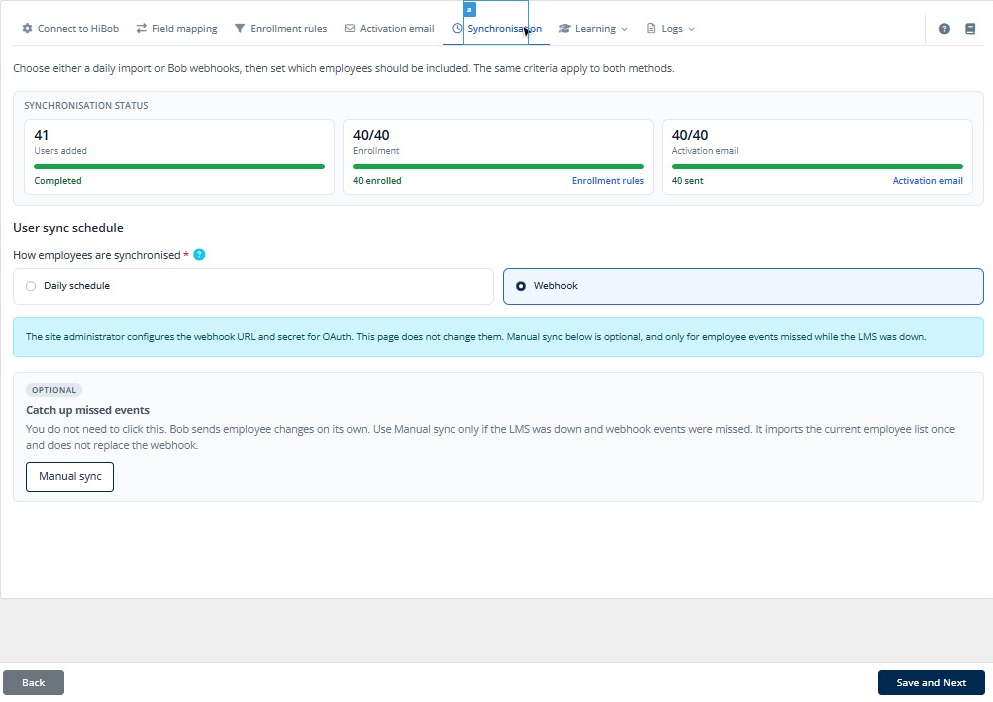
Choose a daily import or event-driven webhooks, and decide which employees to include.
The same user criteria apply to both methods. If Bob reports an employee as terminated, inactive, left or on garden leave, the LMS suspends their account. The connection must be allowed to see those people.
| Setting | Requirement | Guidance |
|---|---|---|
| How employees are synchronised | Required | Select Daily schedule or Webhook. Only the chosen method runs. |
| Run user sync at | Daily schedule only | Import time of day. The offset beside it is the timezone stored for this schedule. Last sync shows the latest completed import, or Not synced yet. No daily run occurs while Webhook is selected. |
| User sync criteria | Optional | Always visible. The same field/value rows filter daily imports, webhooks, Initial run and Manual sync. Fields include Manager Email, Designation, Team ID, Department, custom attributes and a user-created date. Leave empty to sync everyone the connection can see. |
| Initial run | Required once | Imports existing employees for either method, because webhooks do not import people already in Bob. The button is hidden after use and replaced by progress cards. Save enrolment rules and the activation email first. |
| Manual sync | Optional; Webhook only | Recovery when LMS downtime caused missed Bob events. Imports the current employee list once. |
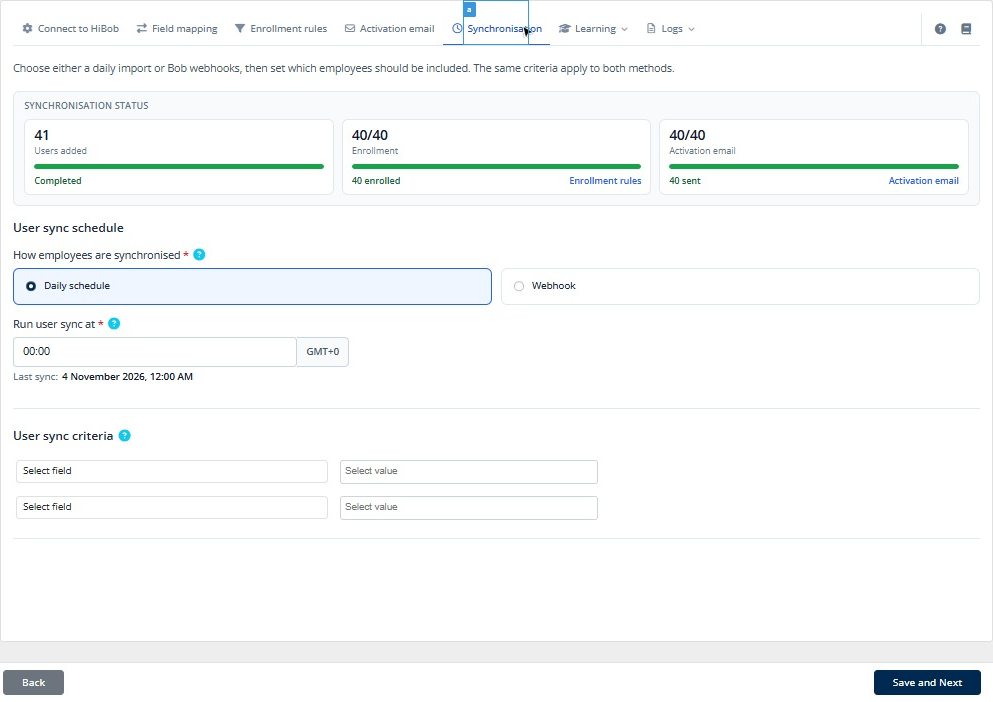
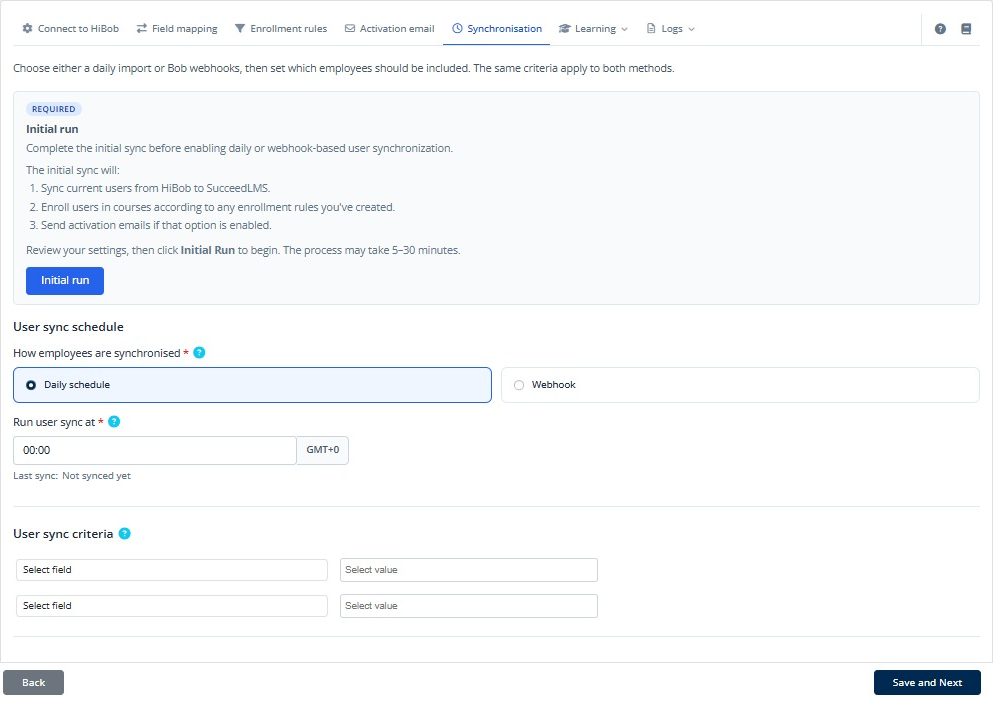
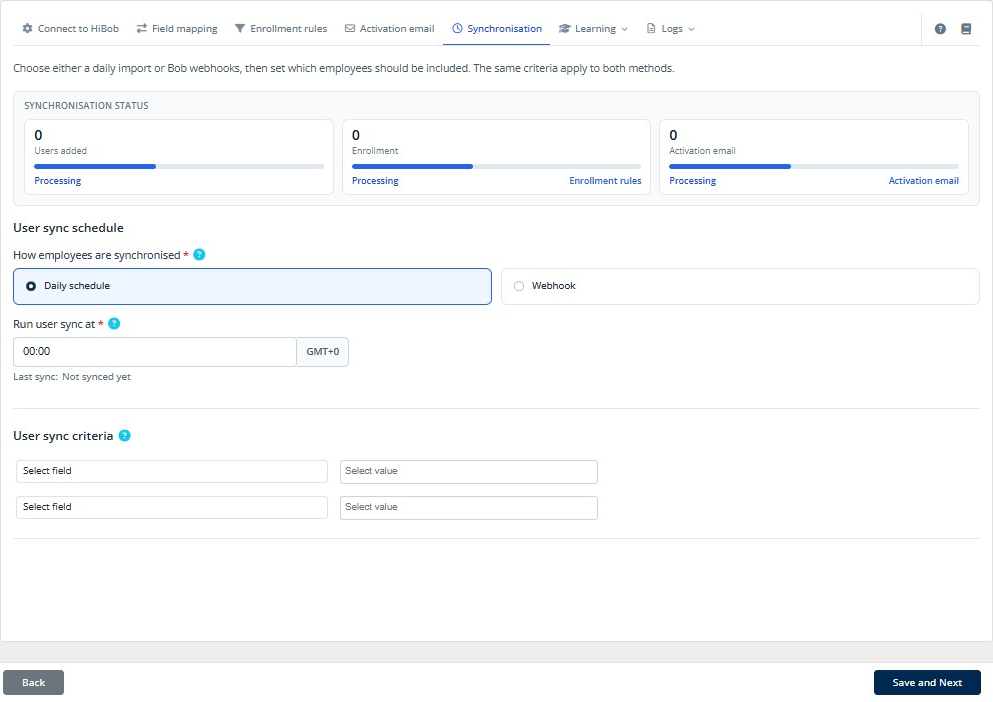
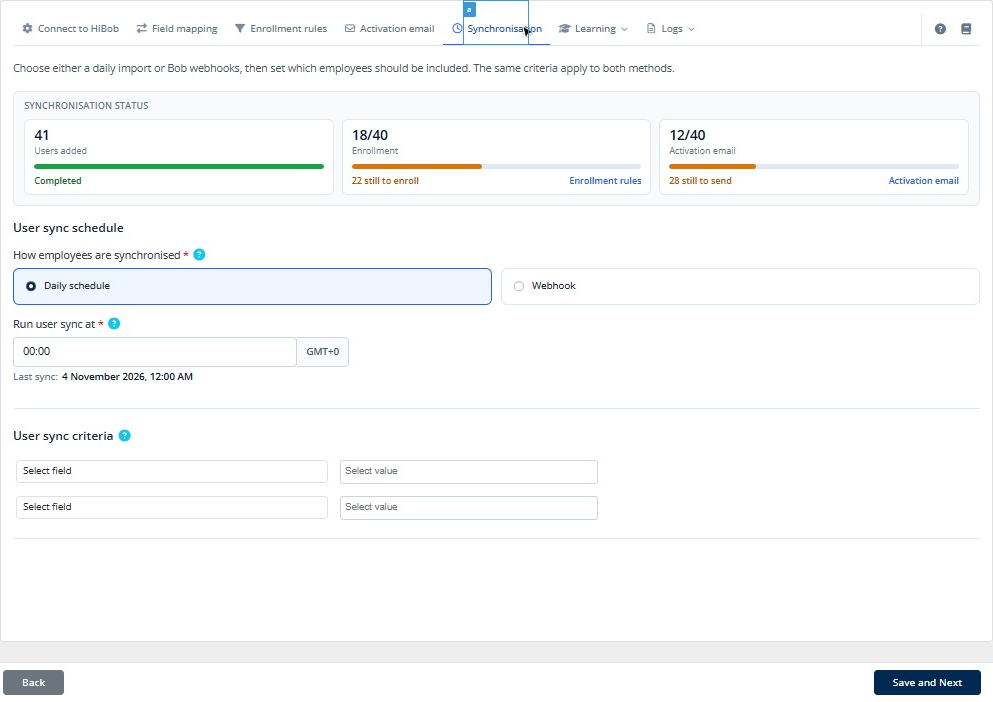
Pending enrolment and activation cards continue reading progress while jobs wait or cron tasks run. The enrolment card links to Enrollment rules; activation cards or the off-state note link to Activation email. Activation mail is only queued at account creation; later rule execution depends on each rule's Run at the time of sync setting.
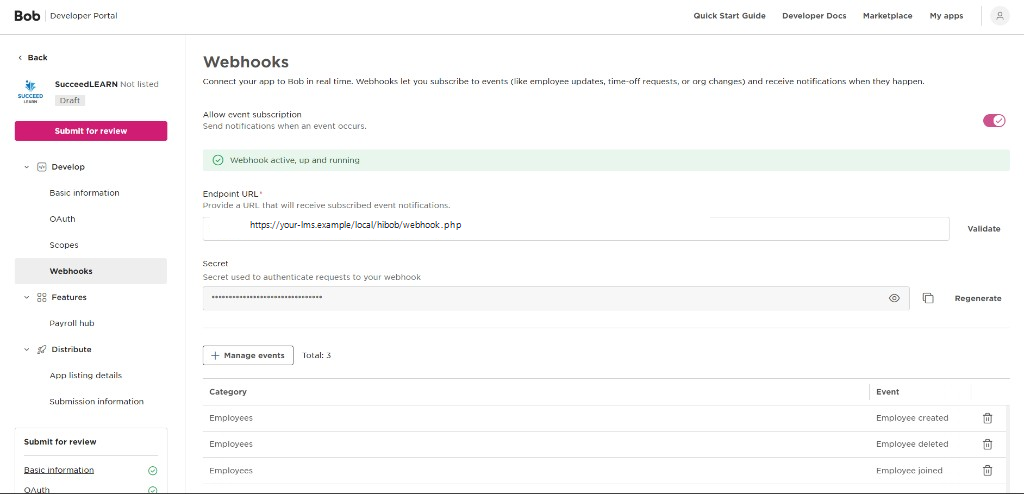
Webhooks apply employee hires, updates and departures as Bob sends them. Daily imports stop while Webhook is selected. Logs → Webhook events stays available with either method.
| Connection | Where configuration lives | What each company sees |
|---|---|---|
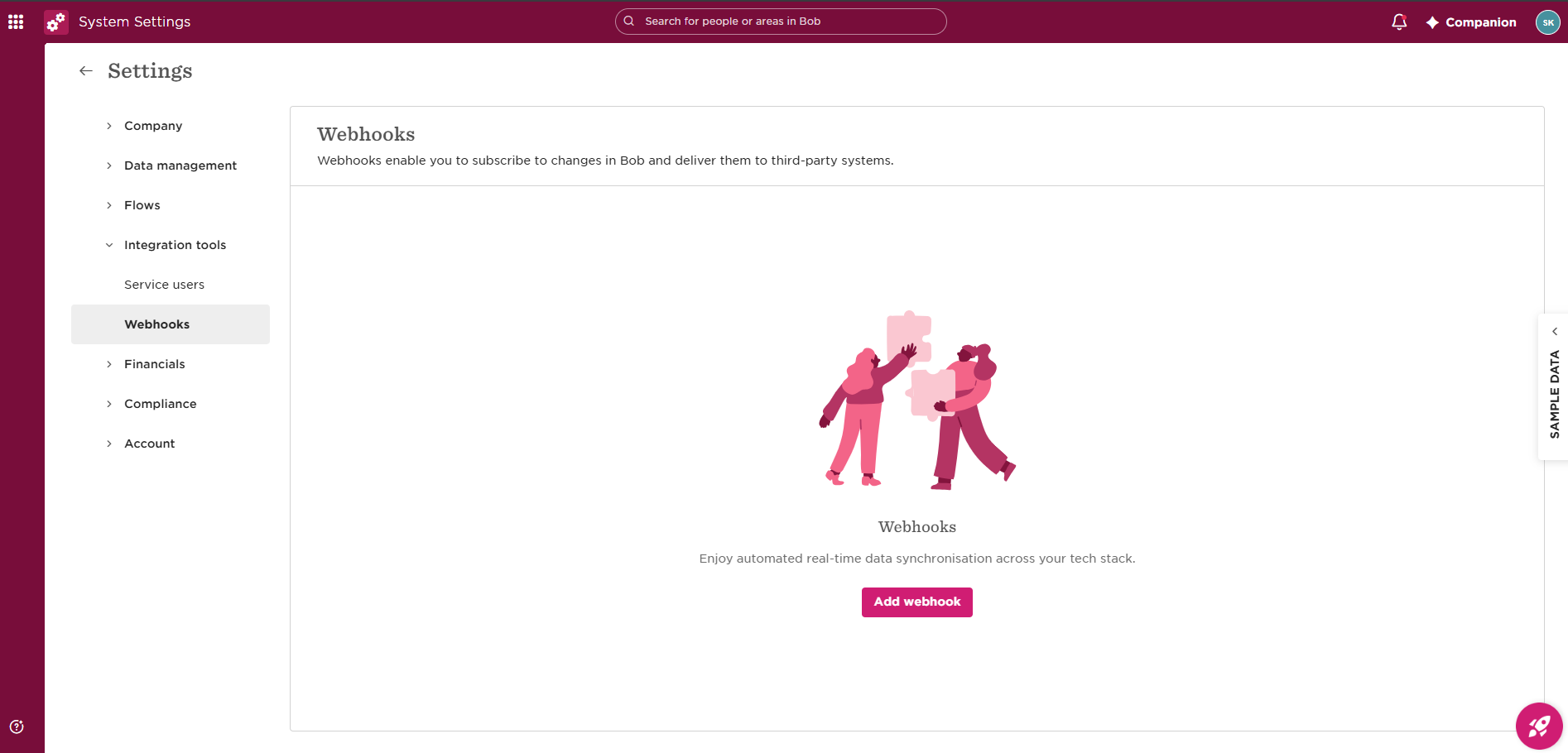
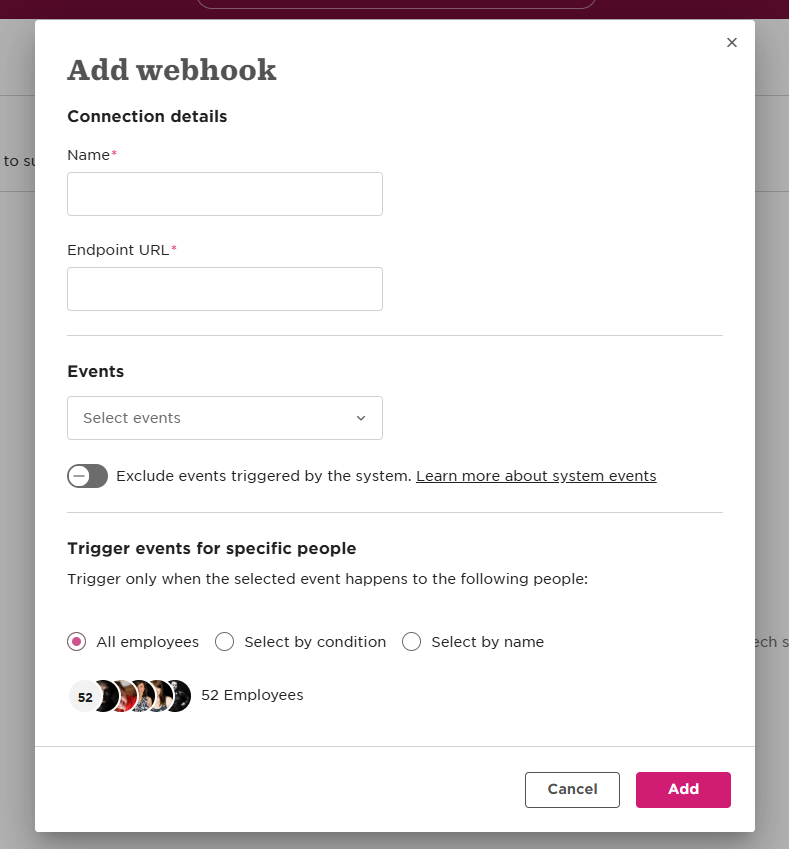
| OAuth | A site administrator sets one shared app Webhook URL and secret on HiBob app. | Every OAuth company shares this pair but chooses Daily schedule or Webhook independently. Synchronisation shows a note and Manual sync; it does not edit the app secret. |
| Service user | Connection-specific Webhook URL and secret on Synchronisation. | Select Webhook to see the URL and secret for that connection. |
Source: supplied HiBob User Guide, pp. 20 - 23.
MANAGE
Share completion certificates and close relevant HiBob tasks when learning is completed.
Learning features are optional. Use only the items your organisation needs.
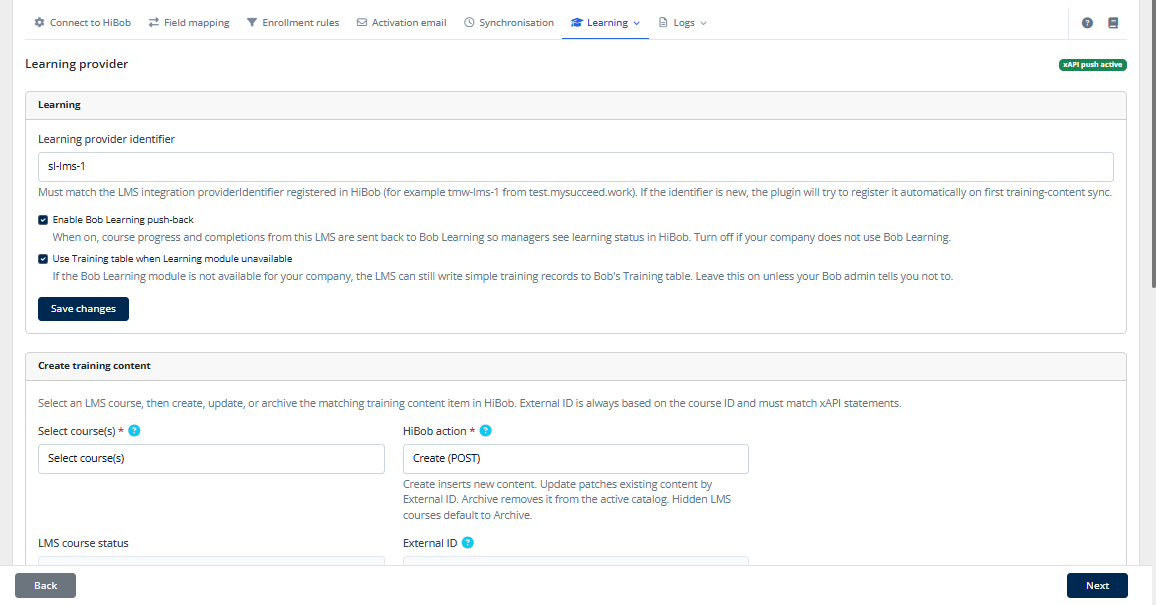
Upload issued LMS completion certificates to Bob employee documents through the HiBob Docs API, so HR can view certificates in each person's profile. Skip this if your organisation does not store certificates in Bob.
| Control | Requirement | What it does |
|---|---|---|
| Course(s) | Required | Choose the courses whose certificates should upload. Only courses with issued certificates for Bob-linked users appear. |
| Force re-sync | Optional | Re-upload certificates already synced. Leave off to skip previous uploads and process new ones. |
| Run Certificate Sync | Action | Start uploads and view each user, course, status, assigned Bob document ID and any error. |
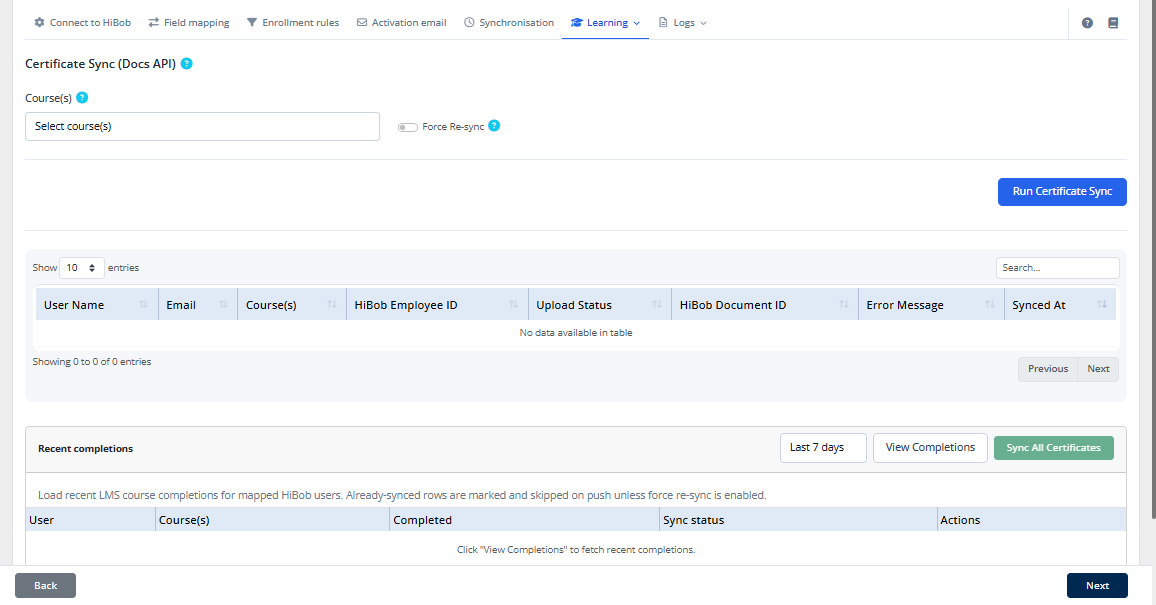
| Column | Meaning |
|---|---|
| User Name / Email / Course | LMS user and course whose certificate was uploaded. |
| HiBob Employee ID | Bob employee who received the certificate. |
| Upload Status | Success or the error that occurred. |
| HiBob Document ID | File ID assigned by Bob. |
| Error Message | Bob or LMS detail when an upload fails. |
| Synced At | Date and time the upload was processed. |
Select Last 7 days or another period, then View Completions. The table shows User, Course, Completed, Sync status and Actions. Sync All Certificates stays disabled until completions are loaded. Previously synced rows are marked and skipped unless Force Re-sync is on.
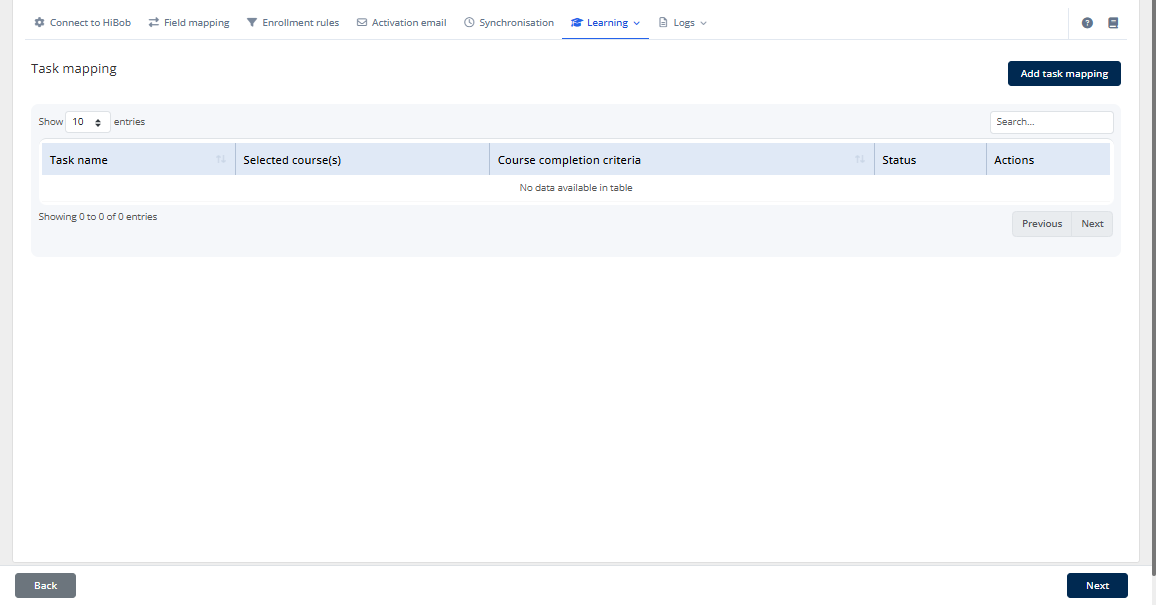
Link LMS completions to open Bob tasks, such as onboarding checklist items. The task closes when the configured All or Any course-completion criteria are met. Skip this if Bob Tasks is not used for learning.
| Field | Requirement | Guidance |
|---|---|---|
| HiBob Task Name | Required | Enter the exact name in Bob, for example Complete induction training. The LMS matches an open task for that employee at completion time. |
| Select course(s) | Required | Choose one or more LMS courses that should close the same task. |
| Task Completion Criteria | Required | All: every selected course must be completed. Any: one completed course is sufficient. Shown in the list as Course completion criteria. |
| Add task mapping | Action | Open the form. List columns: Task name, Selected course(s), Course completion criteria, Status and Actions. |
| Status | Control | Pause a mapping without deleting it, for testing or while a task is temporarily unused. |
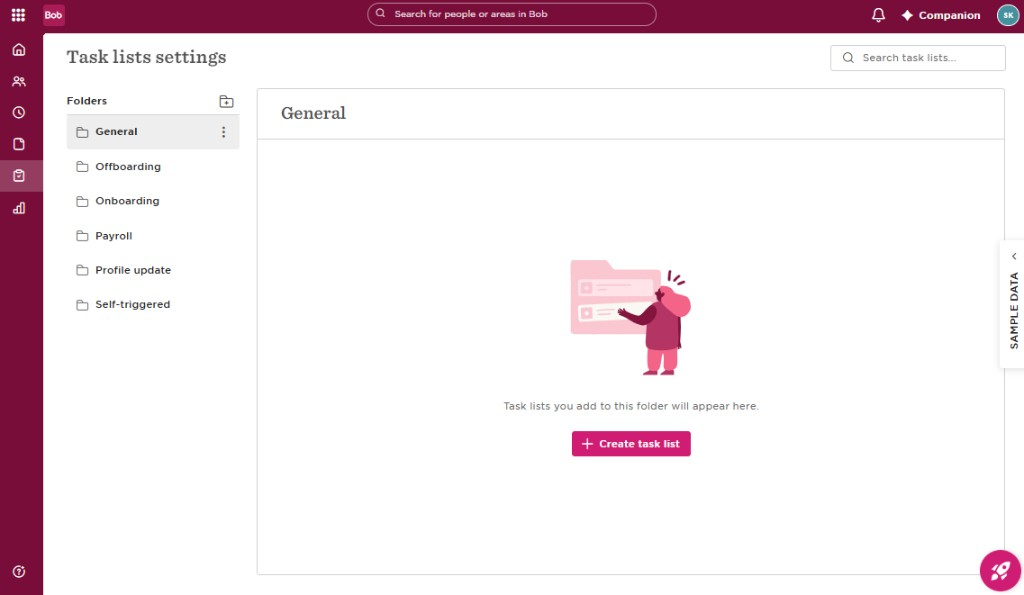
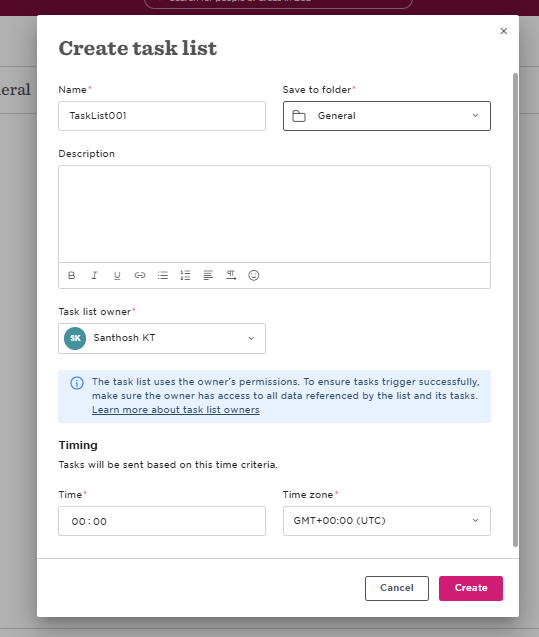
Every employee needs their own open assigned task before course completion can close it. Use the exact same task name in Bob and the LMS.
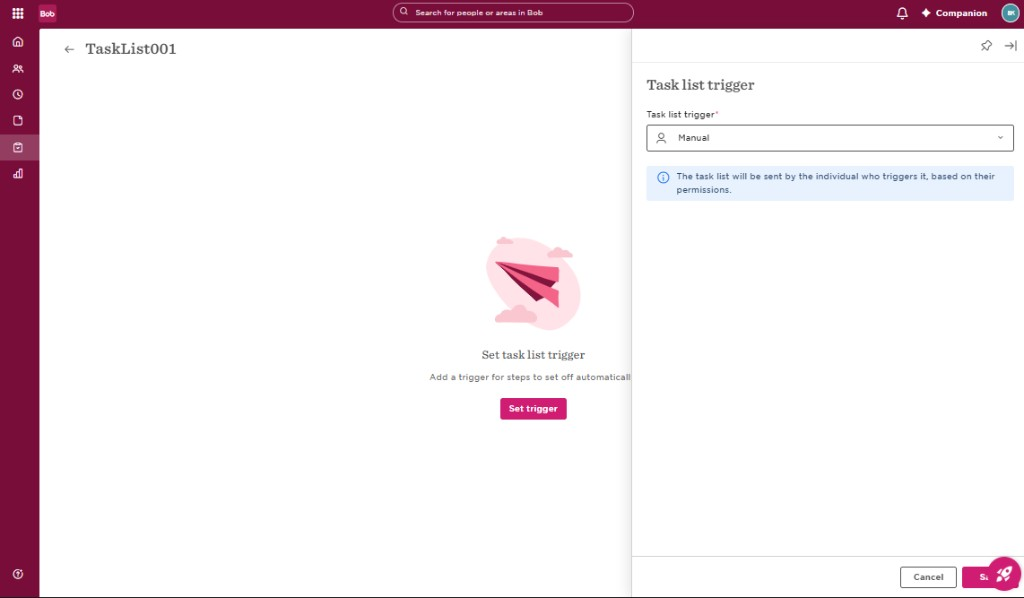
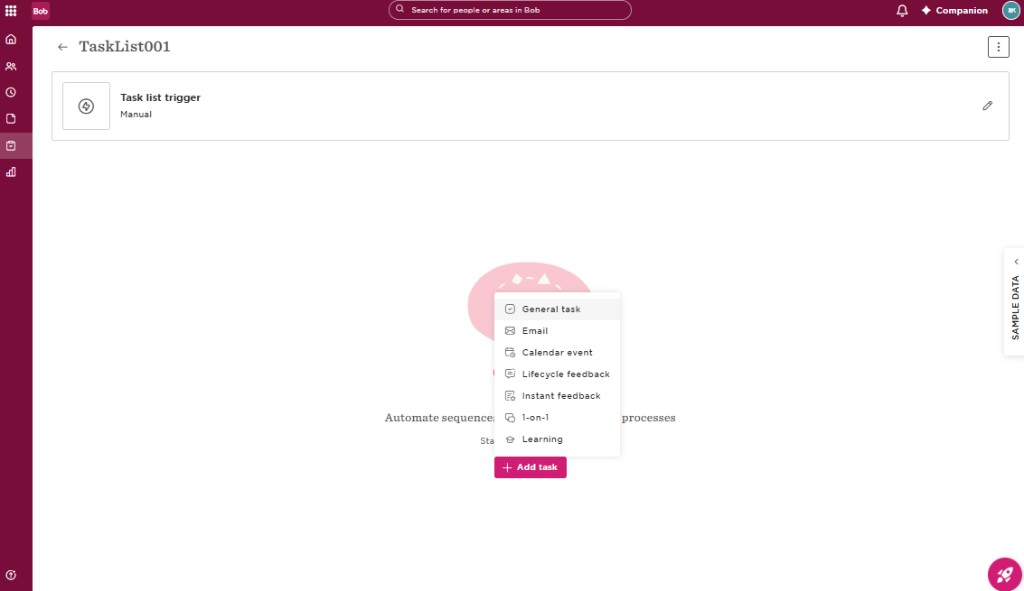
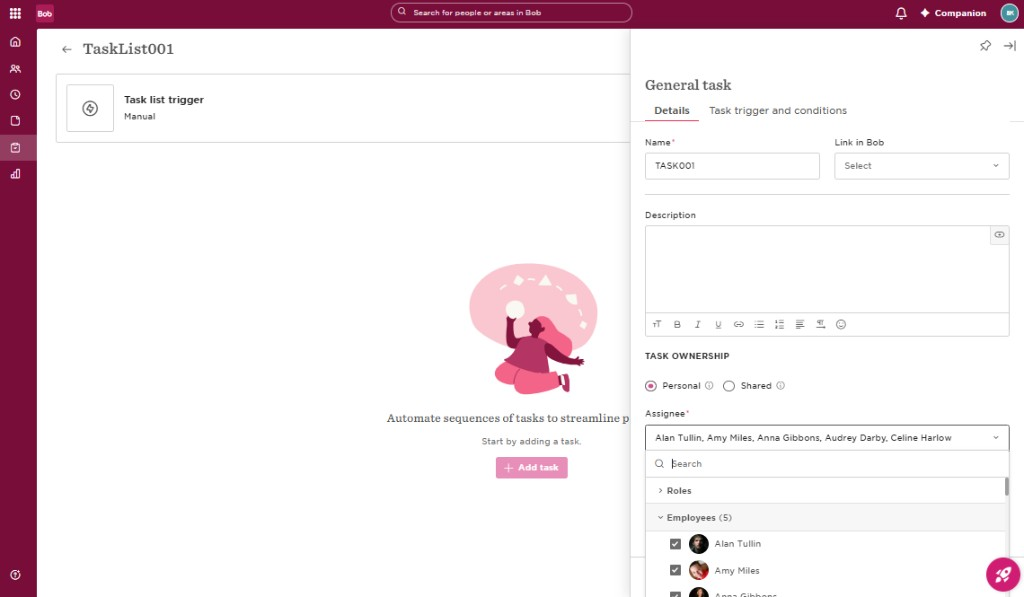
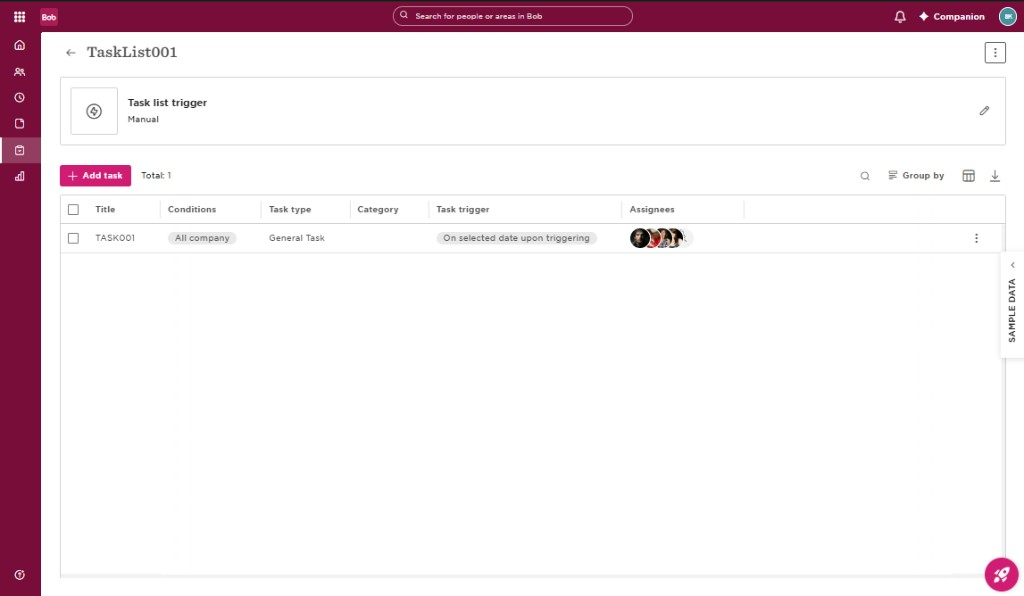
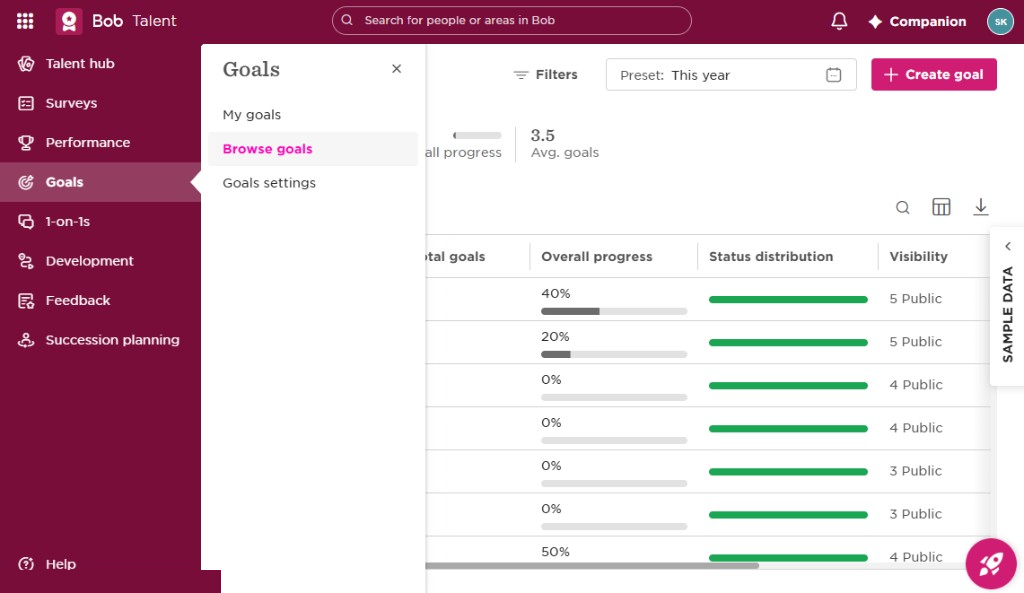
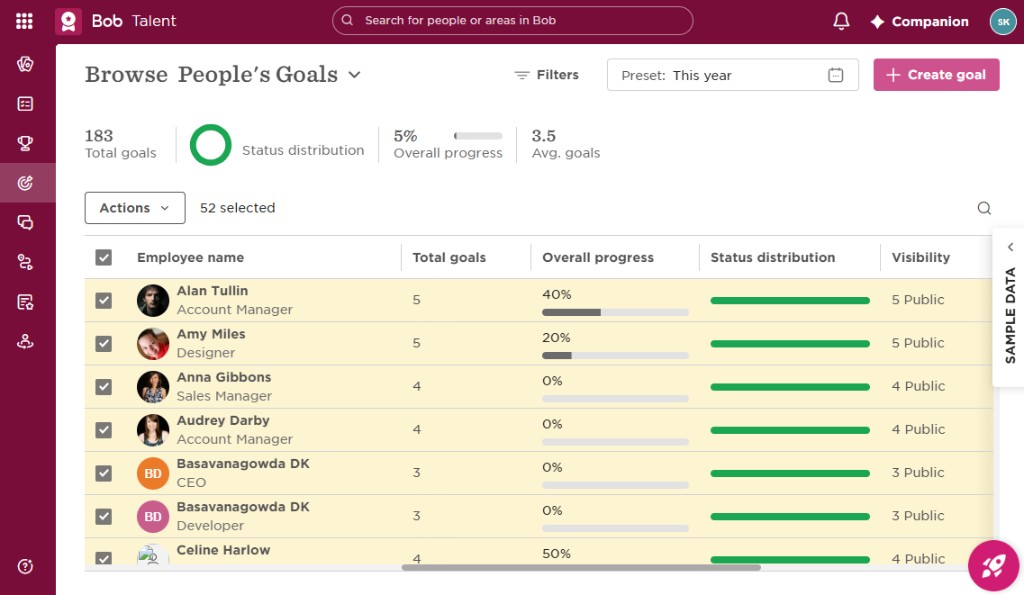
If your organisation uses Bob Goals, map LMS progress to a goal title and key result that match Bob exactly.
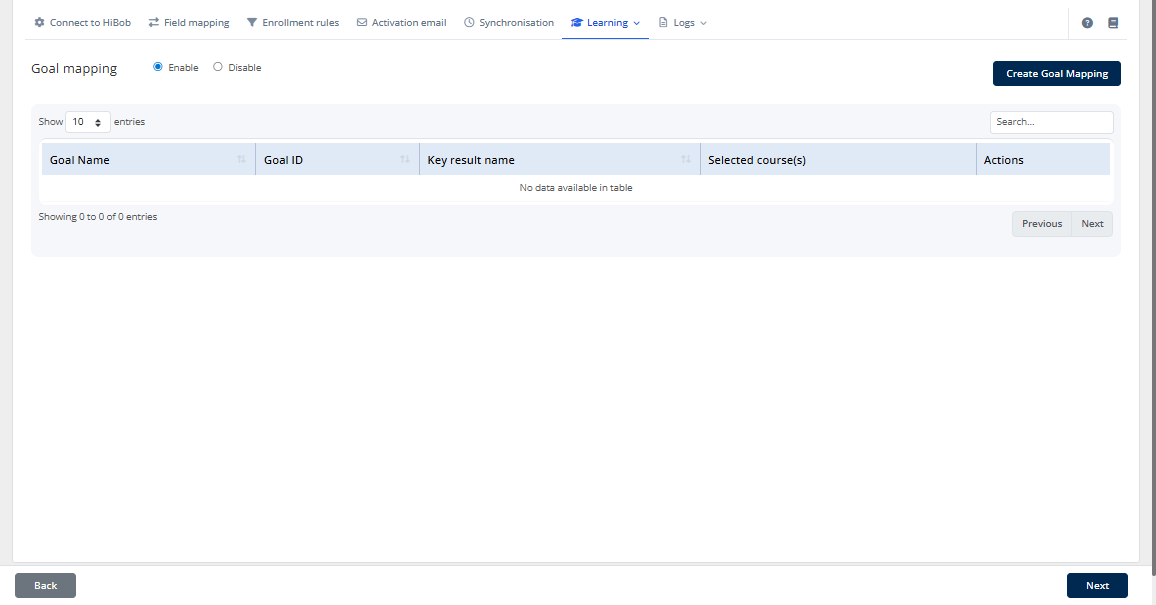
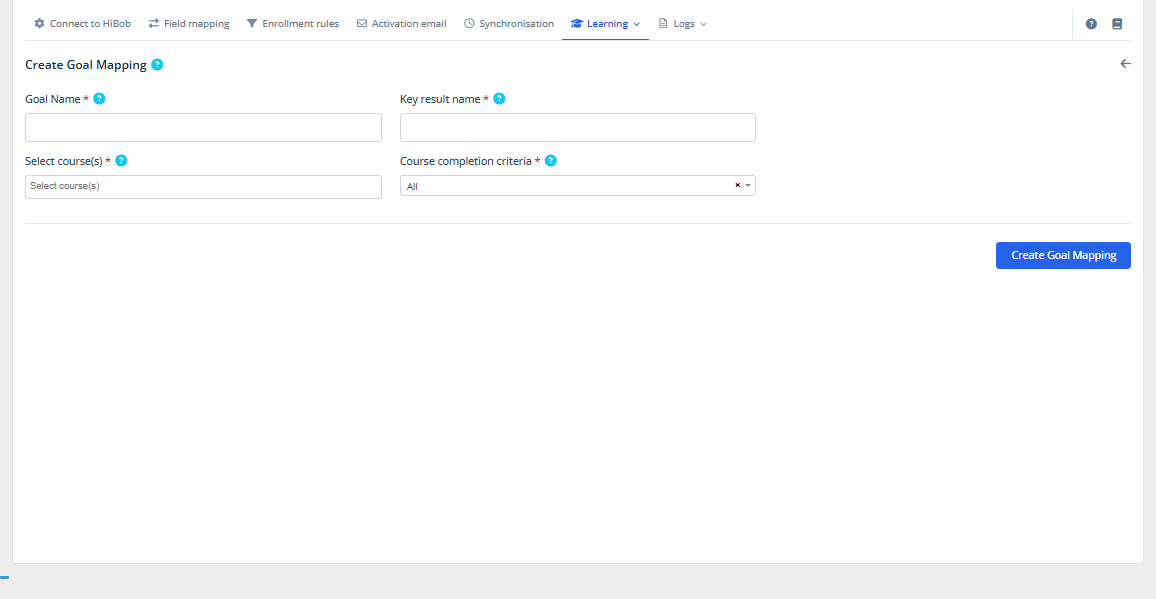
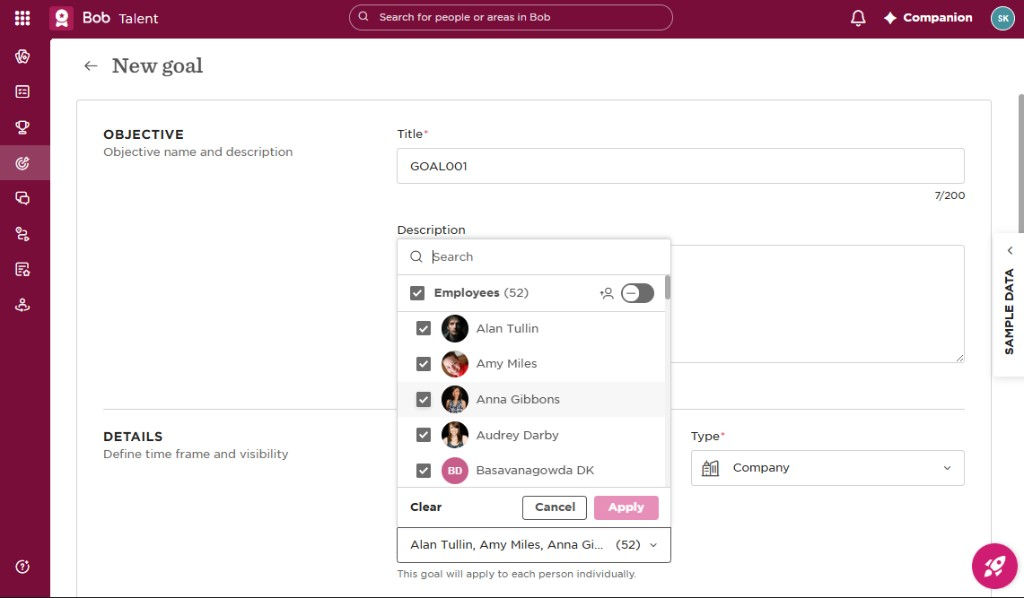
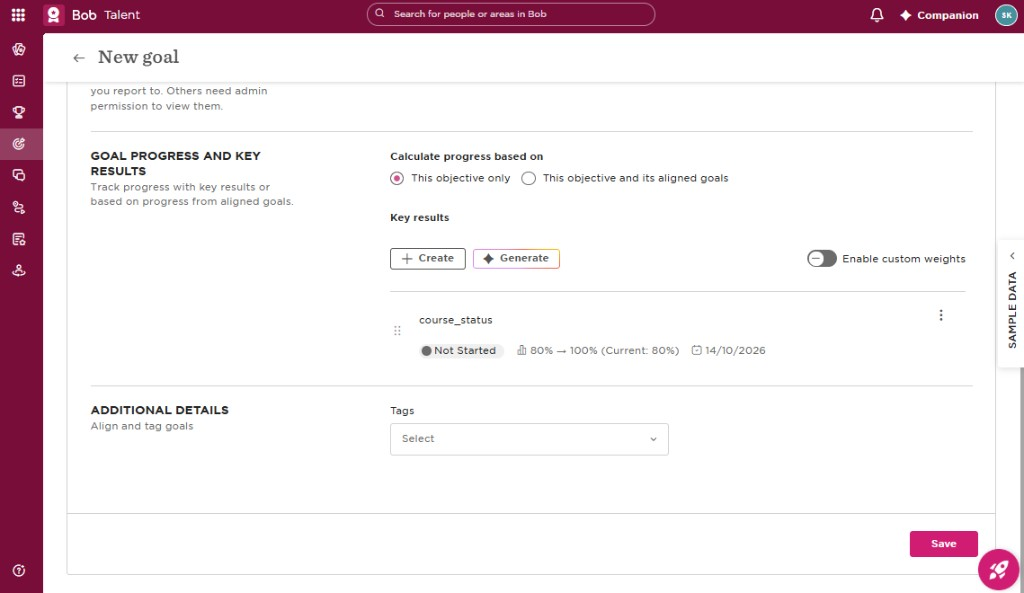
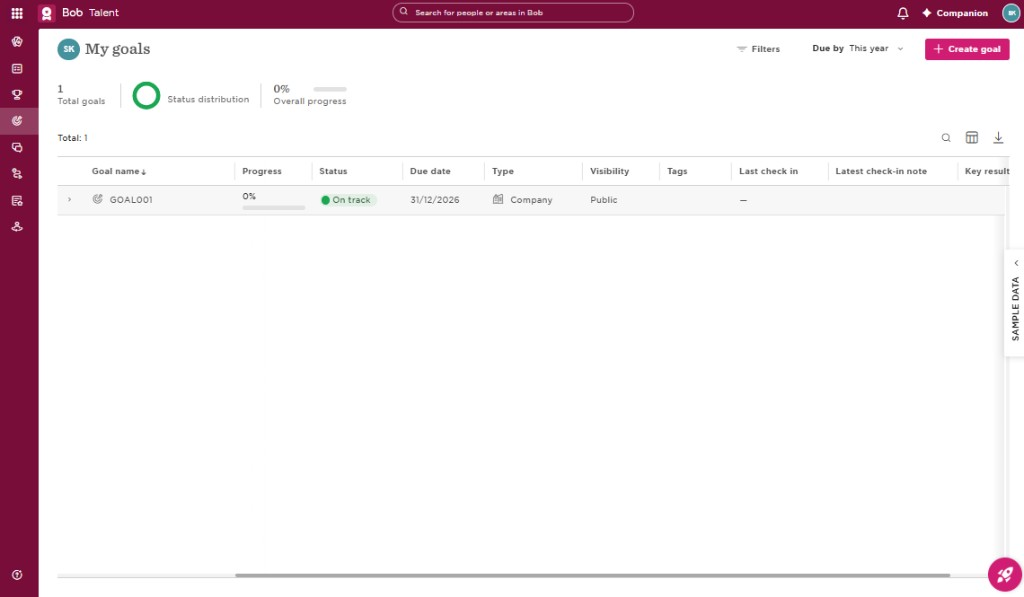
GET /v1/tasks and looks for an open task whose name exactly matches the mapping.Source: supplied HiBob User Guide, pp. 24 - 26.
MANAGE
Review recent activity to check integration health or investigate a problem.
This tab is read-only: it does not change settings. Sync logs, API logs and Webhook events are separate items in the Logs menu.
| Log type | What it shows |
|---|---|
| Sync logs | Employee import and learning sync results, including successes and errors. |
| API logs | Individual LMS calls to Bob. Useful when support asks for a timestamp or error code. |
| Webhook events | Bob messages for employees who were created, updated or left. |
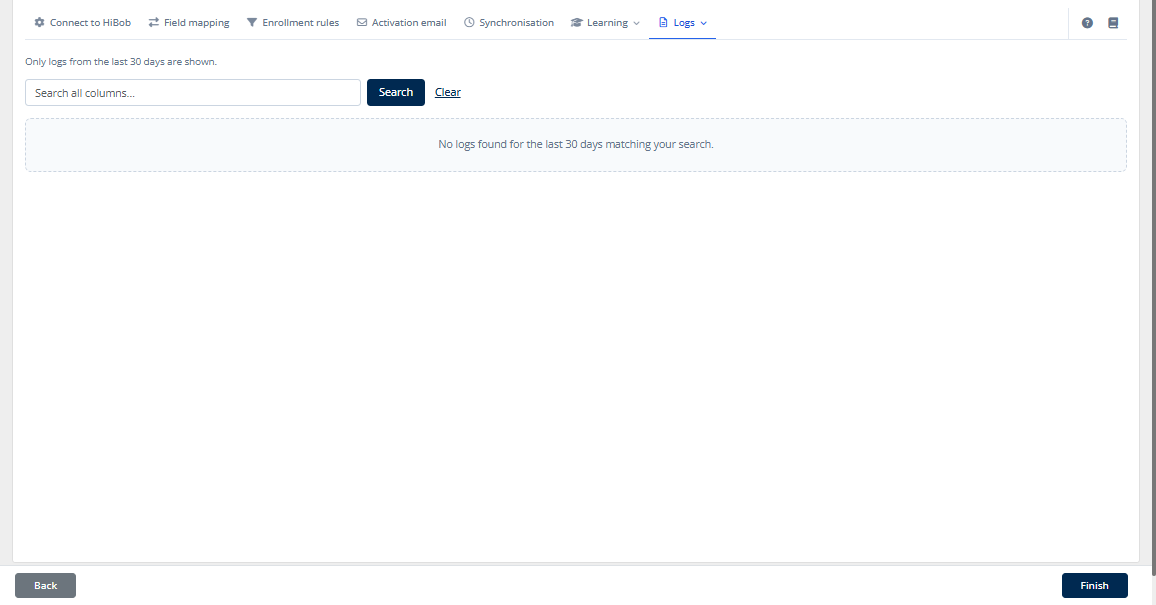
Source: supplied HiBob User Guide, p. 27.
REFERENCE
Use the symptom to find the next check.
| Problem | Likely cause | What to do |
|---|---|---|
| Connectivity test fails (401) | Incorrect ID/token, whitespace, or a regenerated token not updated. | Re-copy the ID and token from Bob, paste carefully, save and retest. Confirm auth type is Service user. |
| Connection works, but no employees | Empty permission group, restricted Access rights or sync filters. | Confirm service-user membership; grant People's data View; widen Access data for; clear User sync criteria; run Initial run; check Sync logs. |
| Some profile fields stay blank | Missing permission for the field's Bob category. | Grant View for that category. Remapping alone is not enough. |
| Leavers are not suspended | Inactive people excluded or Lifecycle not viewable. | Include inactive people in Access data for and grant Lifecycle View. The LMS suspends terminated, inactive, left and garden-leave accounts. |
| Duplicate or incorrect usernames | Two Bob people share a work email, or an LMS account already uses it. | Username is always the work email and cannot be changed. Correct the duplicate email in Bob or the existing LMS account. |
| OAuth shows "Not connected" | Redirect URI mismatch or unsaved credentials. | Save client ID, secret and URL first. Copy the Redirect URI exactly into the HiBob portal, then Connect. |
| OAuth token expired | Refresh token unused for about 60 days, or revoked. | Choose Reconnect and complete consent again. |
| Learning is not appearing in Bob | Learning push-back off, missing provider identifier or permissions. | Enable Learning push-back; confirm the provider identifier; grant Learning permissions; check API logs. |
| Certificate upload fails | Missing Docs Shared upload permission. | Grant People → Docs → Shared Upload/View. |
| Task is not closed in Bob | Name mismatch, no open task assigned to that person, or missing Tasks permission. | Match the task name exactly. Ensure the task list was triggered and the employee is an assignee with an open task. Grant People's tasks. Closed tasks cannot reopen through the API. |
| Goal progress is not updated | Goal title, key result or owner does not match; or Goals permission is view-only. | Use the same goal title and key-result name as Bob. Mapping by name requires a goal owned by that employee (Browse goals, Type Company, everyone selected). Grant Goals permission for that goal type, including key-result updates. Check API logs. |
| Webhook does not fire | URL unregistered, secret mismatch, or LMS not publicly reachable. | Service user: re-copy URL from Synchronisation with Webhook selected and match the secret. OAuth: administrator checks the app URL and secret. Confirm Ping returns HTTP 200; check Webhook events. |
| Firewall or timeout | LMS cannot reach api.hibob.com or auth.app.hibob.com. | Allow outbound HTTPS and retry the connectivity test. |
Source: supplied HiBob User Guide, pp. 28 - 29.
REFERENCE
The terms used throughout this guide.
https://api.hibob.com/v1. Set once on HiBob app and copied onto each connection when saved.Source: supplied HiBob User Guide, p. 29.
REFERENCE
Use the official documentation for platform and API setup.
Prepared from document version 3.3, "HTML administrator guide", local_hibob. The source guide is for administrator use.
Source: supplied HiBob User Guide, pp. 29 - 30.
Download the original PDF. Keep the Administrator Guide for offline setup and handoff to HR, L&D or IT.
Download original guideYour questions, answered
Quick answers to common questions about the SucceedLEARN and HiBob integration.
Go to troubleshootingIt connects Bob employee data with LMS administration. Depending on your configuration, you can create and update learner profiles, apply course enrolment rules, send welcome emails to newly created users, upload completion certificates and close mapped open Bob tasks.
Not for the default OAuth connection. Leave the Service user switch off to connect through OAuth after the app is configured. Turn it on only when your organisation is using a Bob service-user ID and token.
Yes. Turn off Sync users from HiBob when users already arrive through another process. The connection can then update learning, tasks and certificates for matching Bob employees. Employee mapping, synchronisation, enrolment-rule and activation-email tabs are hidden in this mode.
Yes. Bob access permissions define which people the connection can see. User sync criteria in the LMS can further filter that audience. The same criteria apply to daily imports, webhooks, Initial run and Manual sync.
Yes. Webhooks do not import employees who already exist in Bob. Initial run imports the existing audience once. Manual sync is available in webhook mode to recover from missed events, for example after LMS downtime.
New rules are enabled to run when a user is created. You can also enable Run at the time of sync to apply them to existing users during later syncs. That option removes an enrolment if the person no longer matches the rule. Configure your rules before Initial run.
The optional email is queued only when an account is created. Choose Immediately, 12, 24 or 48 hours later, or a custom delay. The message can contain a set-password button; it does not include a password.
When Bob reports terminated, inactive, left or garden leave, the LMS suspends the account. The connection must have access to those people and the required Lifecycle permission for the service-user route.
No. Bob's Public API cannot reopen a closed task. Resetting an LMS course completion later leaves the Bob task closed. Each employee must have their own open, assigned task with an exactly matching name before completion can close it.
Use the read-only Logs menu: Sync logs, API logs and Webhook events. The guide specifies the last 30 days of activity, searchable by person, message or error text. The troubleshooting section lists the next checks for common issues.
Bring your workflow together
Explore how SucceedLEARN can connect employee information, course enrolment and completion records for your organisation.
Speak with our team about connecting HiBob employee data with SucceedLEARN learning administration.
Request a DemoAlready setting up? Open the quick-start checklist.
Source: HiBob Integration Administrator Guide, version 3.3. Screenshots and setup details are retained from that guide. Example employee data in screenshots is illustrative.
Download the original PDF ↗